Inviting new user to your Organization
Introduction
This article explains how an administrator of an organization can invite users to their organization. It covers also the process of accepting an invitation by a user.
Important
One user can only be assigned to one organization at a time.
Prerequisites
Only users with the “admin” role can invite other users to their organization.
In order to accept an invitation, a user must be registered on the platform, as the process of introducing the invitation code takes places in the user account. To learn more about the registration process please refer to Registration and Setting up an Account.
Step by Step Guide
In order to join an existing organization, a user needs to accept an invitation generated by the administrator od the organization. The below instructions present steps that need to be taken by the administrator and the user in order for that user to be added to an existing organization.
Part 1. Administrator
Log into your account https://tm.nsiscloud.polsa.gov.pl/login.
From the menu on the left-hand side, select Invitations.
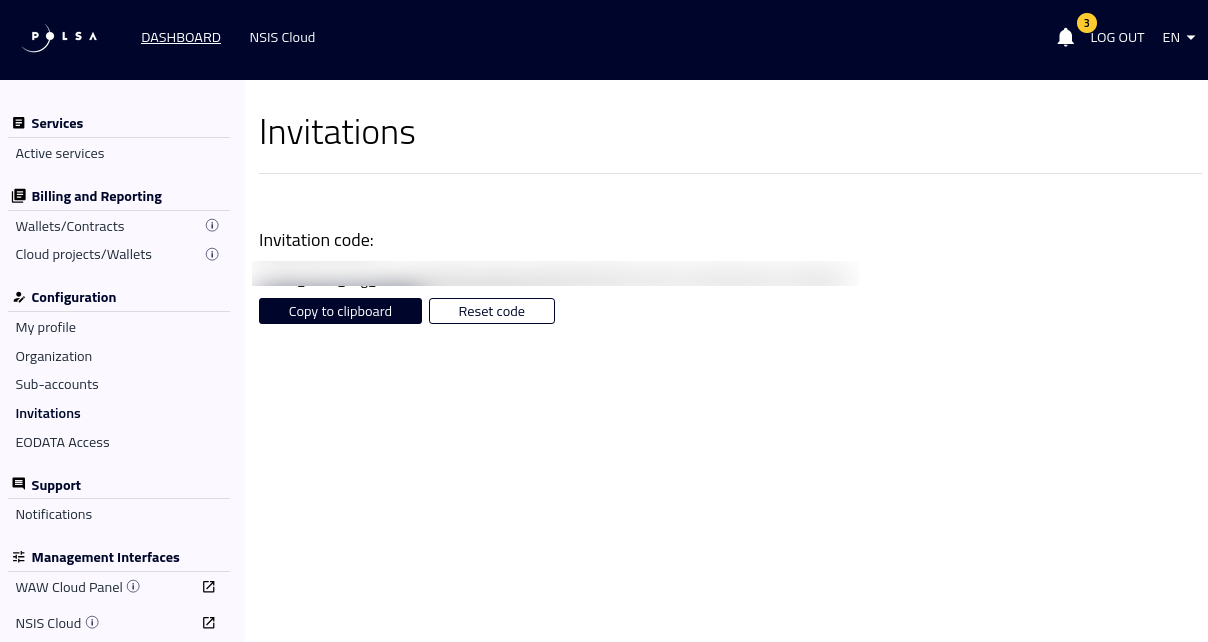
Copy the invitation code by clicking on the Copy to clipboard button.
Share the invitation code with the user, for example, by sending it via e-mail.
Part 2. User
Log into your account https://tm.nsiscloud.polsa.gov.pl/login.
From the menu on the left-hand side, select Organization.
Select the option Join an organization.
Enter the invitation code in the field Invitation code and press the Join the organization button.
The system will display a notification that the request to join an organziation is pending administrator approval.
Part 3. Administrator
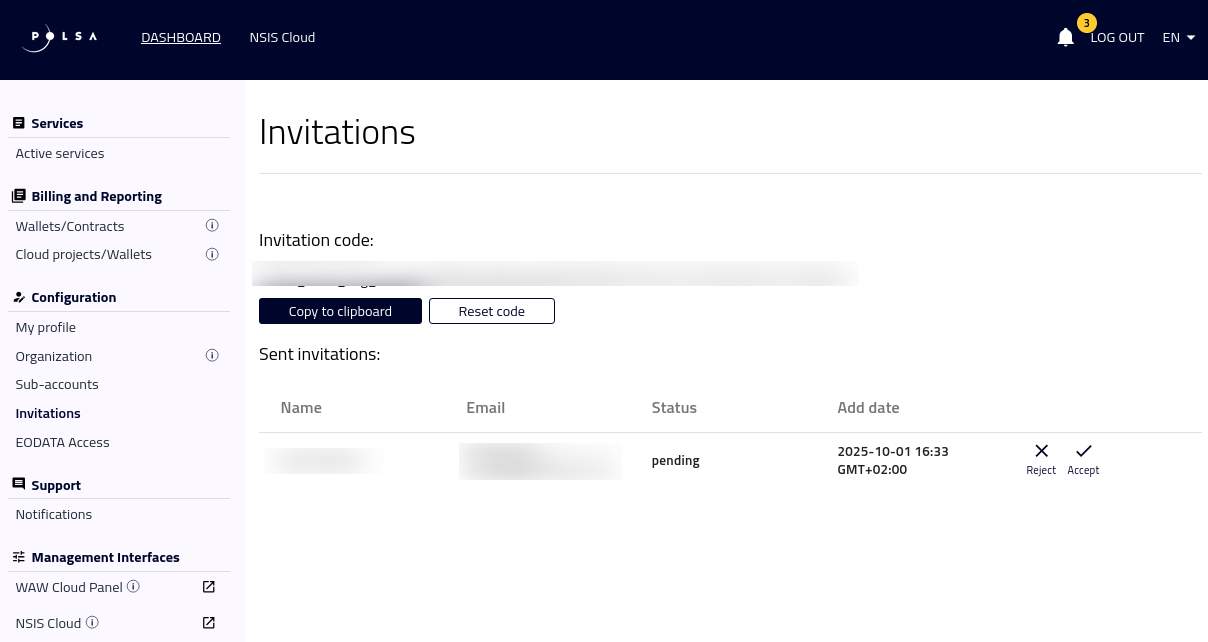
After the user entered the invitation code and selected the option Join the organization, the system will notify the administrator about a pending invitation in the top-right corner as well as per e-mail.
From the menu on the left-hand side, select Invitations.
Select the option Accept.
Now you can copy an invitation code by clicking on Copy to clipboard button and send it to a new user by email.
Part 4. User
After the administrator has accepted the invitation, the user will receive a notification in the top-right corner and via e-mail, that their account has been assigned to the organization.
After the process of adding a user to an organization is completed, the administrator of the organization can add and remove users’ roles. You can find more information in the following article Tenant manager users and roles on NSIS Cloud.