Downloading Polish Sentinel-2 data with curl and wget on NSIS Cloud
To process satellite images on your own computer or a VM, you first need the complete input products. This example downloads two Sentinel-2 L2A products covering Wrocław, Poland, and extracts them into a local directory. The main procedure uses curl. A separate wget example downloads the same products.
Prerequisites
No. 1 NSIS account
Prepare an active NSIS account with access to EODATA. Follow How to activate OpenStack CLI access to NSIS cloud using two-factor authentication to configure authentication. Have your username, password and, if your account requires it, a current one-time code ready. Step 1 signs in and sets the token used for downloading.
No. 2 Ubuntu tools and working directory
Run the commands in a Bash terminal on Linux or WSL. Copy each command block into the terminal and press Enter. On Ubuntu, install curl and wget for downloading, jq for reading catalogue information, and unzip for checking and extracting archives. Installing system packages requires sudo privileges:
sudo apt update
sudo apt install curl wget jq unzip
Create the working directory. It is also used by the Wrocław flood-processing example:
mkdir -p "$HOME/wroclaw-tutorial"
cd "$HOME/wroclaw-tutorial"
Allow several gigabytes of free space for two ZIP archives and their extracted contents. Keep using this directory and terminal throughout the procedure.
No. 3 Example files
Save authenticate.sh, download_wroclaw.sh and refresh_tokens.sh in ~/wroclaw-tutorial. You can download each file or copy its code from the article into a file with the same name. Save a script before running its command. The catalogue request options used by the download script are described in EOData Catalogue API Manual on NSIS Cloud.
Input products
The two observations cover the Wrocław area on tile T33UXS. They provide the before-event and during-event inputs for the flood example:
Acquisition |
Satellite and level |
Catalogue identifier |
|---|---|---|
6 September 2024 |
Sentinel-2B L2A |
3ef54189-a223-43fd-ab03-13010274a96b |
21 September 2024 |
Sentinel-2A L2A |
e0d748d9-6190-46a7-b9e2-a1c898e5a686 |
These are the complete product names. After extraction, each product is a .SAFE directory containing image files and supporting metadata. Keep the complete directory structure:
S2B_MSIL2A_20240906T095549_N0511_R122_T33UXS_20240906T160538.SAFE
S2A_MSIL2A_20240921T100031_N0511_R122_T33UXS_20240921T123352.SAFE
Step 1: Sign in to NSIS
The authentication script asks for your login details and sets ACCESS_TOKEN and REFRESH_TOKEN. Passwords and tokens are not displayed. Save authenticate.sh in ~/wroclaw-tutorial. Click the authenticate.sh row to read or copy the code.
authenticate.sh
# Source this file in Bash: source ./authenticate.sh
nsis_login() {
    local nsis_username nsis_password nsis_totp nsis_response nsis_access nsis_refresh
    local -a nsis_totp_arg=()
    read -r -p 'NSIS username: ' nsis_username
    read -r -s -p 'NSIS password: ' nsis_password; printf '\n'
    read -r -s -p 'Current TOTP (leave empty only if your account does not require it): ' nsis_totp; printf '\n'
    if [[ -n "$nsis_totp" ]]; then
        nsis_totp_arg=(--data-urlencode "totp=$nsis_totp")
    fi
    nsis_response=$(curl --fail --silent --show-error \
        'https://identity.nsiscloud.polsa.gov.pl/auth/realms/NSIS-Cloud/protocol/openid-connect/token' \
        --data-urlencode 'client_id=nsis-public' \
        --data-urlencode 'grant_type=password' \
        --data-urlencode "username=$nsis_username" \
        --data-urlencode "password=$nsis_password" \
        "${nsis_totp_arg[@]}") || return 1
    nsis_access=$(jq -er '.access_token | select(type == "string" and length > 0)' <<< "$nsis_response") || return 1
    nsis_refresh=$(jq -er '.refresh_token | select(type == "string" and length > 0)' <<< "$nsis_response") || return 1
    export ACCESS_TOKEN="$nsis_access" REFRESH_TOKEN="$nsis_refresh"
    printf '%s\n' 'NSIS tokens are set in this shell.'
}
nsis_login
From ~/wroclaw-tutorial, run this command in the Bash terminal you will use for downloading. The source command makes the tokens available in that terminal:
source ./authenticate.sh
The message NSIS tokens are set in this shell. confirms that the variables are ready. Keep this terminal open for Step 2.

The password and one-time code stay hidden while you enter them. The confirmation message indicates that the terminal is ready for authenticated downloads.
Step 2: Download and extract with curl
The script looks up each product by its catalogue identifier and checks its exact name and online status. It saves the responses as before-metadata.json and during-metadata.json in data. It reads the download address from the Extracted location returned by the catalogue. For these products, that address returns a ZIP archive containing the complete product.
Save download_wroclaw.sh in ~/wroclaw-tutorial. Click the download_wroclaw.sh row to read or copy the code.
download_wroclaw.sh
#!/usr/bin/env bash
# download_wroclaw.sh
# Run: bash download_wroclaw.sh [curl|wget] [data-directory]
set -euo pipefail

METHOD=${1:-curl}
DATA_DIR=${2:-data}
if [[ $# -gt 2 || ( "$METHOD" != curl && "$METHOD" != wget ) || -z "$DATA_DIR" ]]; then
    printf '%s\n' 'Usage: bash download_wroclaw.sh [curl|wget] [data-directory]' >&2
    exit 2
fi
: "${ACCESS_TOKEN:?Authenticate with NSIS in this terminal first}"
for TOOL in curl jq unzip awk grep "$METHOD"; do
    command -v "$TOOL" >/dev/null
done
mkdir -p -- "$DATA_DIR"

while read -r PERIOD PRODUCT_ID PRODUCT_NAME; do
    ARCHIVE="$DATA_DIR/$PRODUCT_NAME.zip"
    METADATA="$DATA_DIR/$PERIOD-metadata.json"
    if [[ -e "$ARCHIVE" || -e "$ARCHIVE.part" || -e "$DATA_DIR/$PRODUCT_NAME" ]]; then
        printf 'An output already exists for %s. Inspect it before retrying.\n' "$PRODUCT_NAME" >&2
        exit 1
    fi

    curl --fail --silent --show-error --get \
        --data-urlencode "\$filter=Id eq $PRODUCT_ID" \
        --data-urlencode '$expand=Locations' \
        --output "$METADATA" \
        'https://catalogue.nsiscloud.polsa.gov.pl/odata/v1/Products'

    if ! PRODUCT_URL=$(jq -er --arg id "$PRODUCT_ID" --arg name "$PRODUCT_NAME" '
        .value | select(length == 1) | .[0]
        | select(.Id == $id and .Name == $name and .Online == true)
        | [.Locations[]? | select(.FormatType == "Extracted") | .DownloadLink][0]
        | select(type == "string" and length > 0)
    ' "$METADATA"); then
        printf 'No usable download link was returned for %s.\n' "$PRODUCT_NAME" >&2
        exit 1
    fi
    case "$PRODUCT_URL" in
        https://catalogue.nsiscloud.polsa.gov.pl/*|https://download.nsiscloud.polsa.gov.pl/*) ;;
        *) printf '%s\n' 'Unexpected product URL' >&2; exit 1 ;;
    esac

    printf 'Downloading %s with %s\n' "$PRODUCT_NAME" "$METHOD"
    if [[ "$METHOD" == curl ]]; then
        curl --fail --show-error --location-trusted --proto '=https' --proto-redir '=https' \
            --header "Authorization: Bearer $ACCESS_TOKEN" \
            --output "$ARCHIVE.part" "$PRODUCT_URL"
    else
        wget --https-only --tries=1 \
            --header "Authorization: Bearer $ACCESS_TOKEN" \
            --output-document "$ARCHIVE.part" "$PRODUCT_URL"
    fi
    test -s "$ARCHIVE.part"
    unzip -t "$ARCHIVE.part"
    unzip -Z1 "$ARCHIVE.part" > "$ARCHIVE.members.txt"
    if ! awk -v root="$PRODUCT_NAME/" '
        index($0, root) != 1 || $0 ~ /(^|\/)\.\.(\/|$)/ || index($0, "\\") { bad = 1 }
        END { exit bad }
    ' "$ARCHIVE.members.txt"; then
        printf '%s\n' 'The ZIP contains a path outside the expected SAFE directory.' >&2
        exit 1
    fi
    grep -Fx "$PRODUCT_NAME/MTD_MSIL2A.xml" "$ARCHIVE.members.txt" >/dev/null
    mv -- "$ARCHIVE.part" "$ARCHIVE"
    unzip -n "$ARCHIVE" -d "$DATA_DIR"
    test -f "$DATA_DIR/$PRODUCT_NAME/MTD_MSIL2A.xml"
    printf 'Product ready: %s/%s\n' "$DATA_DIR" "$PRODUCT_NAME"
done <<'PRODUCTS'
before 3ef54189-a223-43fd-ab03-13010274a96b S2B_MSIL2A_20240906T095549_N0511_R122_T33UXS_20240906T160538.SAFE
during e0d748d9-6190-46a7-b9e2-a1c898e5a686 S2A_MSIL2A_20240921T100031_N0511_R122_T33UXS_20240921T123352.SAFE
PRODUCTS
In the terminal where you signed in, run this command from ~/wroclaw-tutorial. It uses curl to download both products into data:
bash download_wroclaw.sh
The script checks that each ZIP is readable, contains the expected product directory and includes MTD_MSIL2A.xml, the product metadata file. It then extracts the archive. A Product ready: message gives the path to each extracted product. The archives, catalogue responses and ZIP file lists remain in data.
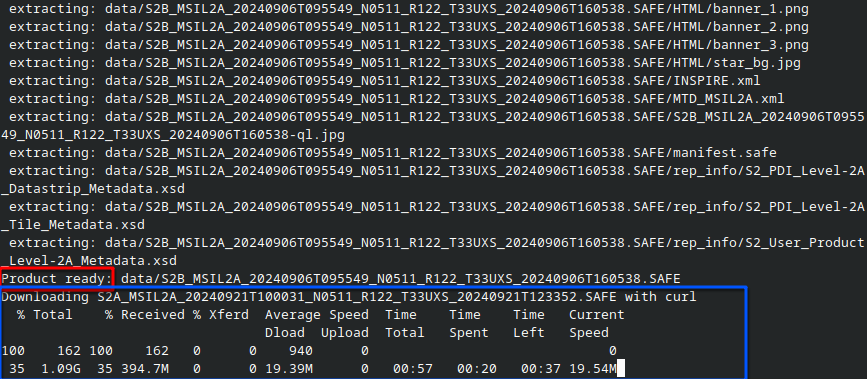
The first product has been extracted and is ready in data. The script then starts downloading the second product with curl.
An unsuccessful download remains as a .zip.part file. An existing archive, partial download or product directory stops the script so those files are not overwritten. The archive checks confirm readability and the expected package structure; they do not assess the images for a particular analysis.
Step 3: Locate the downloaded products
In the same Bash terminal, from ~/wroclaw-tutorial, list the extracted product directories:
ls -d data/*.SAFE
The output should show the two product names listed in Input products. Their paths start with data/. A processing script can use ./data as the directory containing both inputs.

The listing shows both extracted .SAFE directories. These are the two inputs used by the Wrocław processing example.
Optional: Download the same products with wget
The same script also supports wget. It still uses curl for the public catalogue requests, then uses wget for the product downloads. To try this method, run the command in the authenticated Bash terminal from ~/wroclaw-tutorial. It saves the products in wget-data, keeping this download separate from data:
bash download_wroclaw.sh wget wget-data
The same archive checks and extraction steps apply. Allow space for another pair of ZIP archives and extracted products if you run both examples.
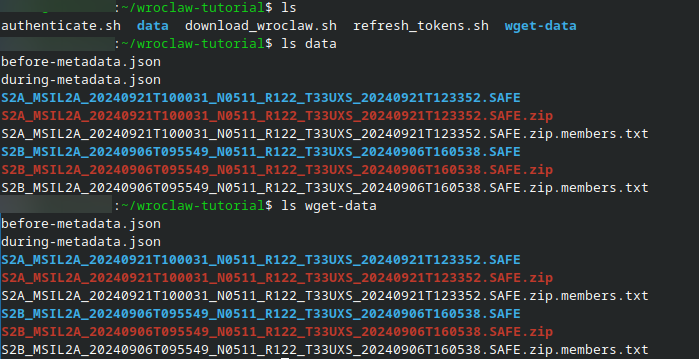
The data and wget-data directories contain separate downloads of the same two products. Each includes the ZIP archives, extracted .SAFE directories, catalogue responses and archive file lists.
Troubleshooting
HTTP 401 or 403: sign in again with source ./authenticate.sh in the download terminal. If access is still refused, check your account permissions for EODATA.
No usable download link: the catalogue did not return the expected online product and an Extracted download address. Inspect the saved metadata response. Keep the exact product names when preparing inputs for the flood example.
An output already exists: inspect the existing files before retrying. The script does not overwrite archives or extracted products. For a separate download, use an empty directory, for example bash download_wroclaw.sh curl retry-data.
ZIP check or extraction failure: keep the partial archive, metadata and terminal output for investigation. Resolve the error before using the product for processing.
Renew an expired token
To obtain new tokens without entering your login details again, save refresh_tokens.sh in ~/wroclaw-tutorial. It uses REFRESH_TOKEN from Step 1. Click the refresh_tokens.sh row to read or copy the code.
refresh_tokens.sh
# refresh_tokens.sh
# Run in the current Bash shell: source ./refresh_tokens.sh
nsis_refresh_tokens() {
    if [[ -z "${REFRESH_TOKEN:-}" ]]; then
        printf '%s\n' 'No refresh token is set. Run source ./authenticate.sh first.' >&2
        return 1
    fi
    local nsis_response nsis_access nsis_refresh
    nsis_response=$(curl --fail --silent --show-error \
        'https://identity.nsiscloud.polsa.gov.pl/auth/realms/NSIS-Cloud/protocol/openid-connect/token' \
        --data-urlencode 'client_id=nsis-public' \
        --data-urlencode 'grant_type=refresh_token' \
        --data-urlencode "refresh_token=$REFRESH_TOKEN") || return 1
    nsis_access=$(jq -er '.access_token | select(type == "string" and length > 0)' <<< "$nsis_response") || return 1
    nsis_refresh=$(jq -er '.refresh_token | select(type == "string" and length > 0)' <<< "$nsis_response") || return 1
    export ACCESS_TOKEN="$nsis_access" REFRESH_TOKEN="$nsis_refresh"
    printf '%s\n' 'NSIS tokens refreshed in this shell.'
}
nsis_refresh_tokens
From ~/wroclaw-tutorial, run this command in the download terminal. Use source so the new tokens stay available there:
source ./refresh_tokens.sh
The message NSIS tokens refreshed in this shell. confirms renewal. If renewal fails, sign in again with authenticate.sh.
What to do next
To process the downloaded products, prepare the Python environment and continue with Step 2: Run the processing script in Analyzing and monitoring floods using Python and Sentinel-2 satellite imagery on NSIS Cloud. The products in ~/wroclaw-tutorial/data are the inputs for that example.
For general product and individual-file downloads, consult Using curl and wget to download EODATA products from NSIS Cloud.