Marketplace
Marketplace is an application dedicated to guest users, enabling them to browse, filter and search publicly available resources stored in the resource repository. The availability of resources in Marketplace is defined exclusively by the Administrator in the NSIS Cloud application.
1. Application launch
To launch the Marketplace application, the user selects the “Browse Satellite Products” button on the portal’s home page.
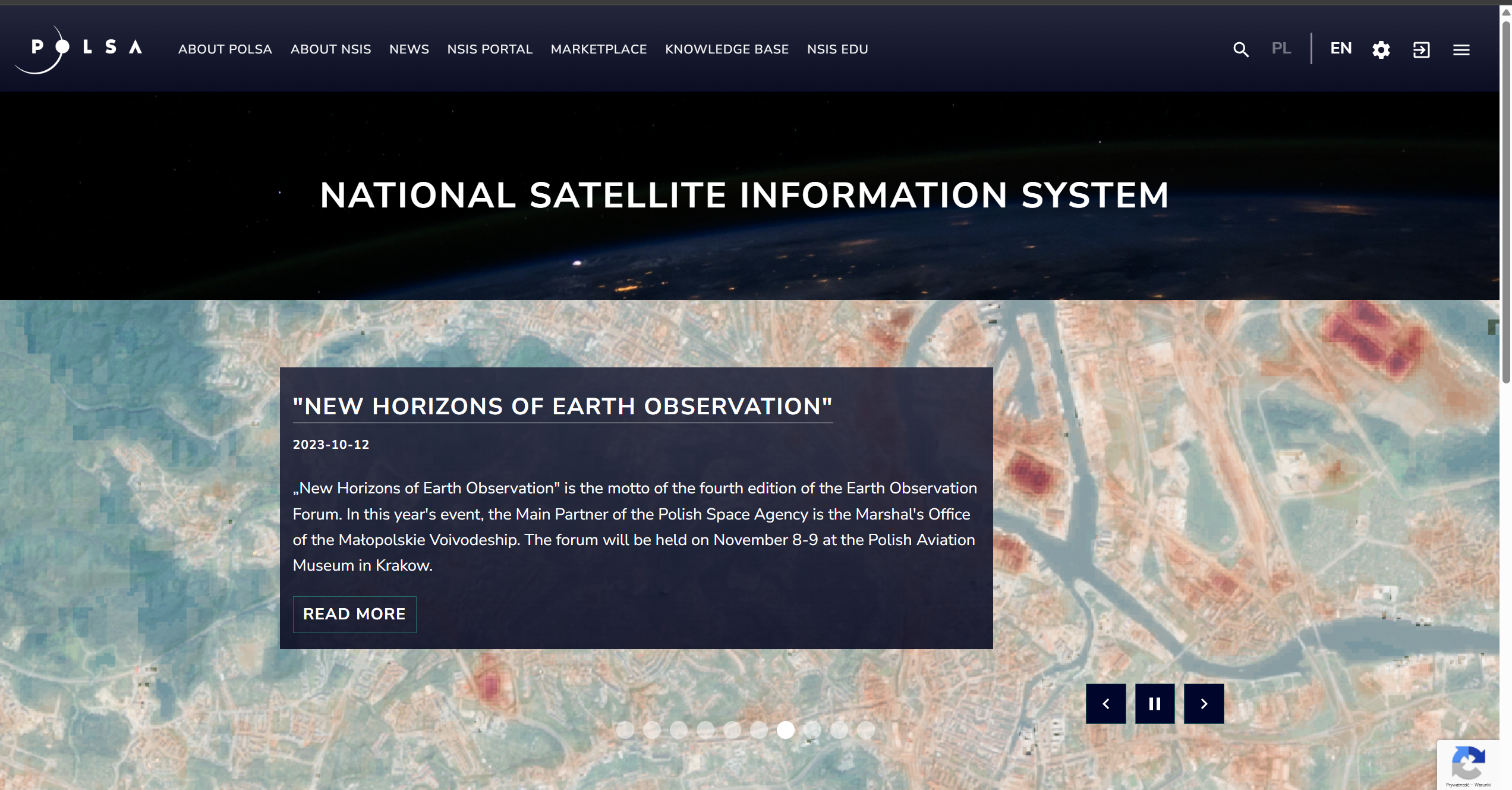
Fig. 1. Launching the Marketplace application
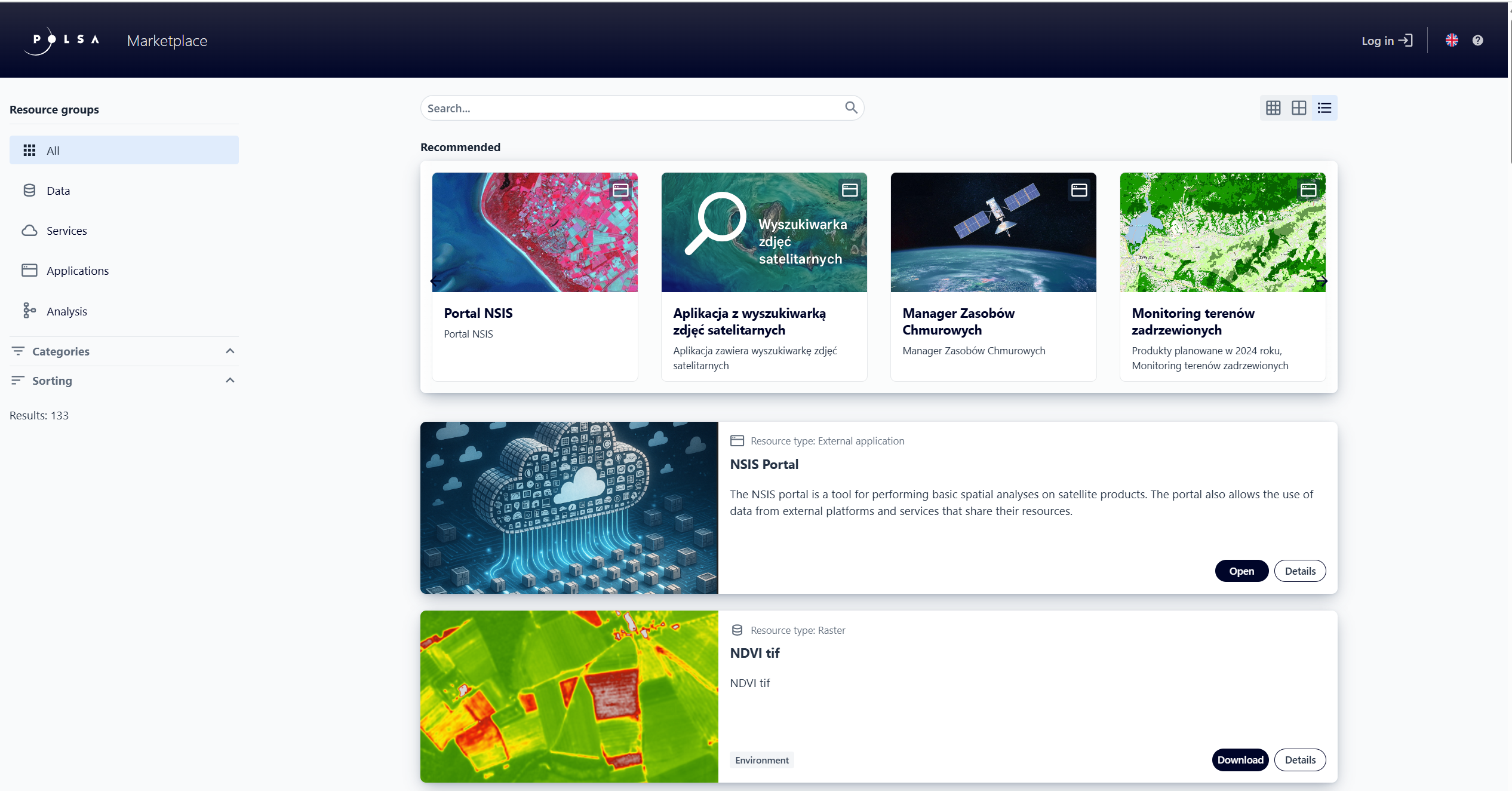
Fig. 2. Marketplace application
2. Description of user interface controls
Element |
Description |
|---|---|

|
Search resource |
|
Change view: simplified view (with 5 or 1 column), list view |

|
Show all resources |

|
Show Data group resources (Algorithms, Raster catalogs, Files, Rasters) |

|
Show Services group resources (Map compositions, External services) |

|
Show Applications group resources (External applications, Maps) |

|
Show Analyses group resources (Task, Process) |

|
Filter resources by categories |

|
Sort displayed resources |

|
Register / Sign in |

|
Select language |

|
Help |

|
Show resource details |

|
Open – action for External Applications, Maps |

|
Download – action for Algorithms, Raster catalogs, Files, Rasters) |

|
Run - action for Process |

|
Back to the main page Marketplace |

|
Copy service URL |
Table 1. Description of user interface controls
3. Marketplace Menu
The menu is used for navigating the application and displays:
Resource groups:
All - a list of available resources in the Marketplace, categorized into:
Data - includes: Algorithms, Raster catalogs, Files and Rasters;
Services - includes: Map Compositions and External Services;
Applications - includes: External Applications and Maps;
Analyses - includes: Task and Process;
Categories (Category filtering) - allows filtering resources according to their assigned categories.
Sorting - allows changing the order in which resources are displayed.
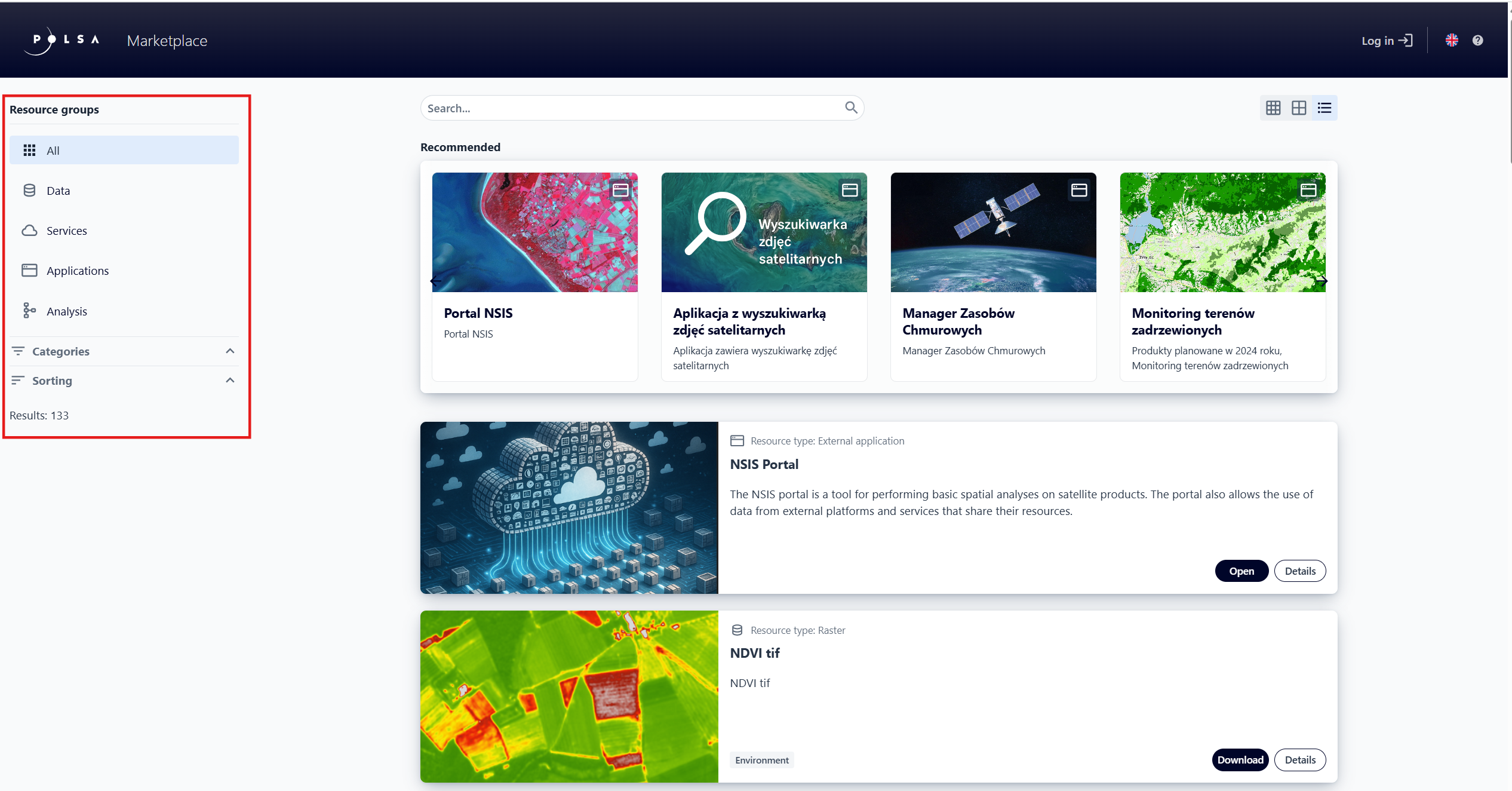
Fig. 3. Marketplace menu
4. Changing the list view of resources
In the top-right corner of the resource list, there are three buttons that allow changing the display mode. The user can click a selected button to switch the display mode:
Small tile view – displays resources as tiles arranged in a grid. The grid can consist of 1 to 5 columns, depending on the zoom settings on the page. This feature allows quickly browsing a larger number of items at once.
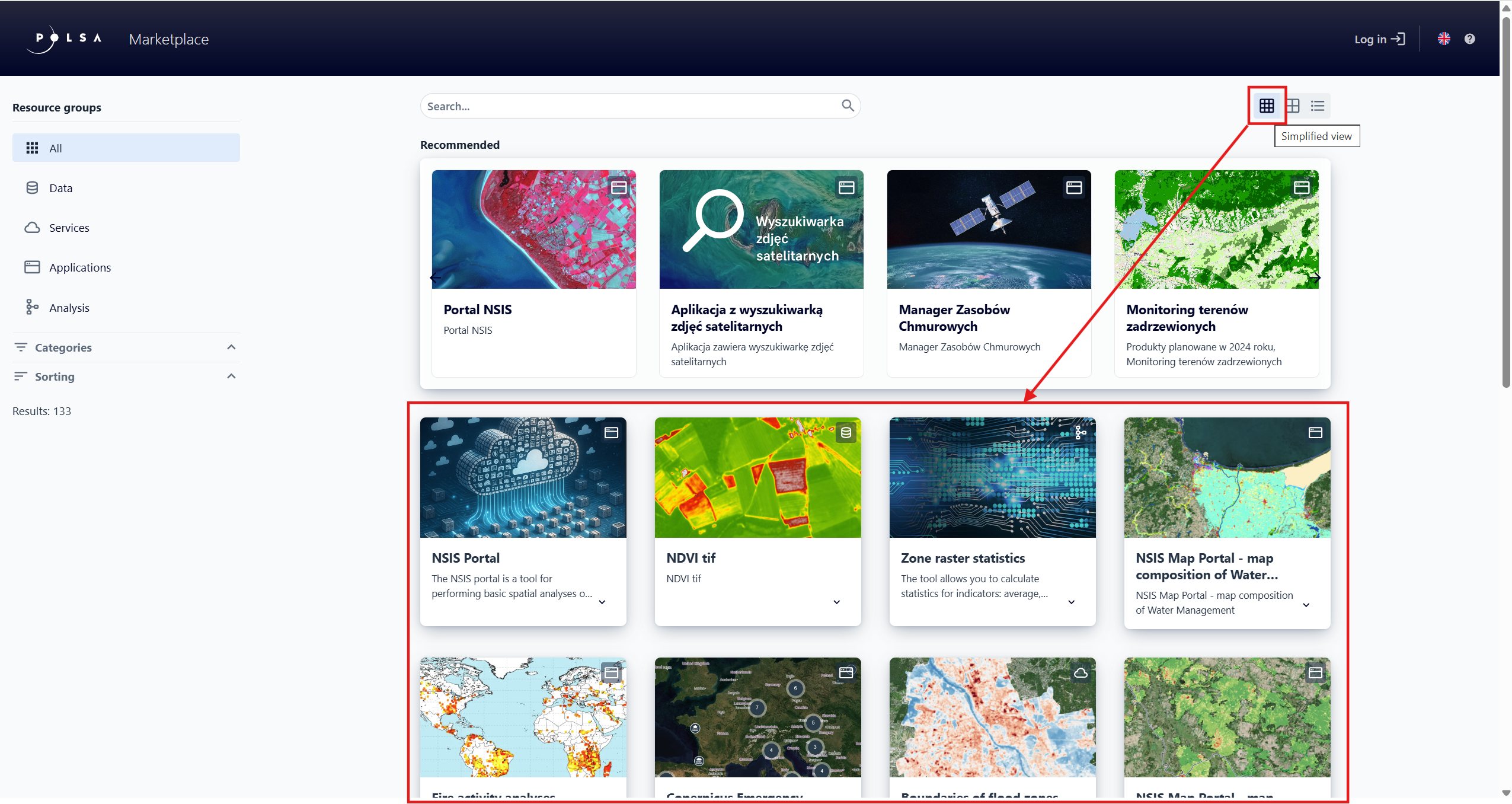
Fig. 4. Simplified view (1 to 5 columns)
Large tile view – displays resources in larger tiles, arranged in 1 to 3 columns, with additional details visible immediately.
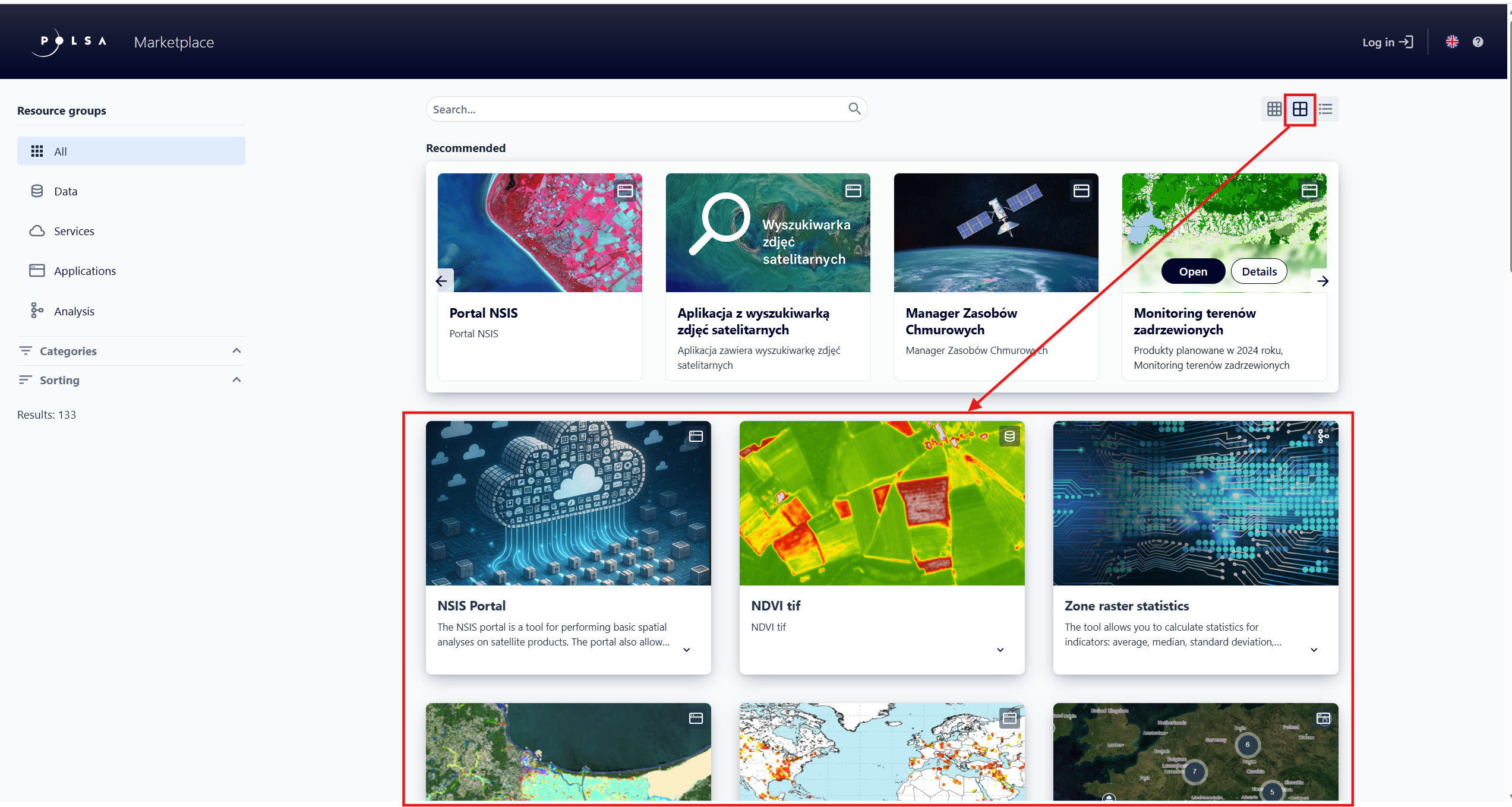
Fig. 5. Simplified view (1 to 3 columns)
List view – displays resources in a list format, making it easier to read names and compare detailed information.
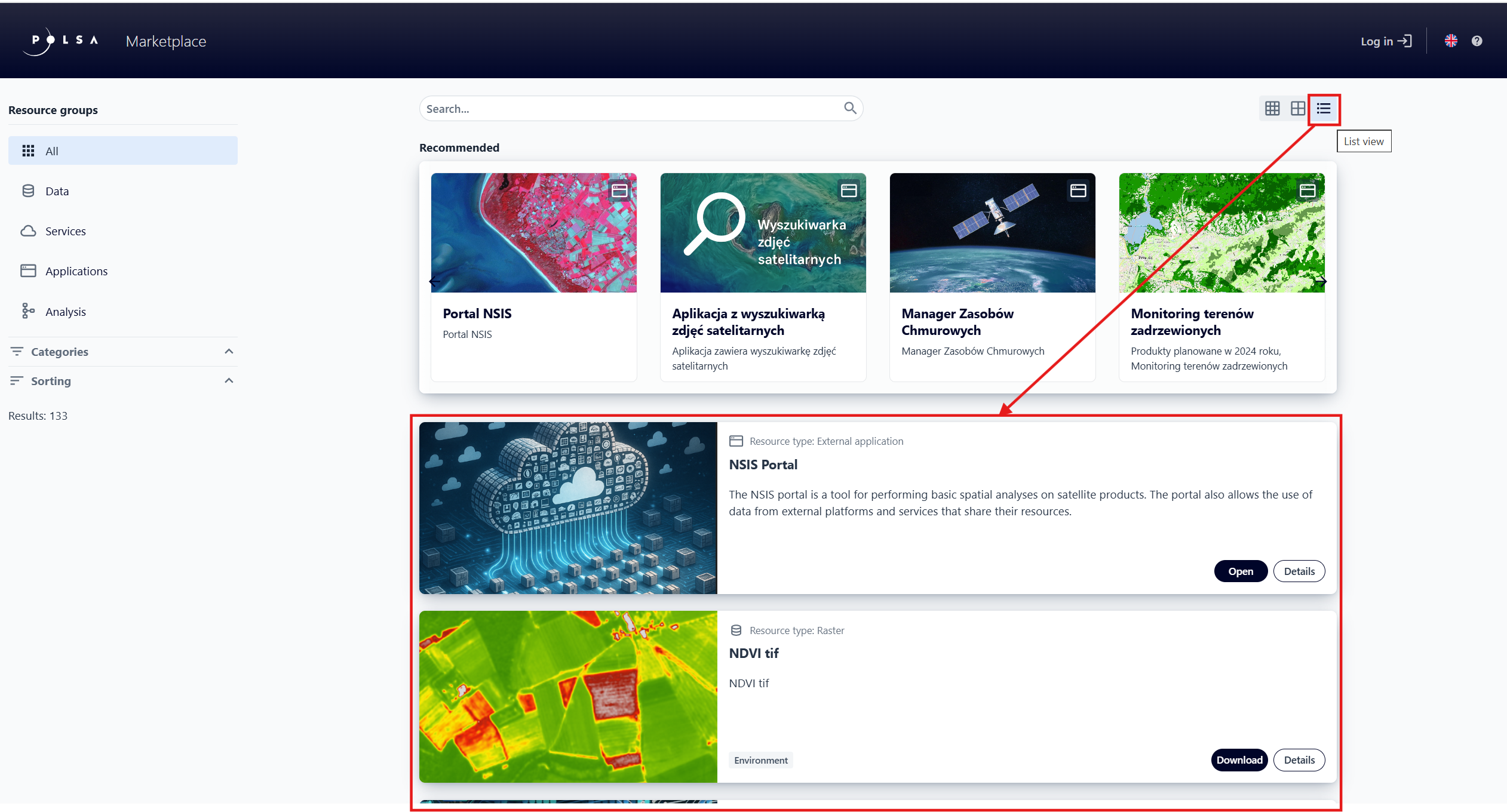
Fig. 6. List view
5. Description of resource grouping and types available in the Marketplace
In the Marketplace application, resources are divided into resource types:
Algorithm – a definition of a remote sensing data analyses process represented as a processing graph in XML format, generated in SNAP (Sentinel Application Platform); used to configure the process in the Task Studio application, available to logged-in Users.
Task - a key component of Process, consisting of geoprocessing. Used in Task Studio. Can be created only by an Administrator.
Process - used to create task models in which, in addition to mathematical calculations, operations on resources (e.g. rasters) are performed. Process can consist of a Task, an Algorithm, or another Process.
External application - a link to an application running in another system, integrated with the NSIS Cloud platform via a defined URL.
Raster catalog - a collection of rasters selected by an authenticated user in Satellite Image Browser and saved as a resource in NSIS Cloud.
Map composition - a resource created in the NSIS Cloud component: “Map Composition Studio” based on resources from the Data group, e.g. Spatial Layer.
Map - a map application containing a basemap, user-added resources (e.g. spatial layers, rasters, map compositions, external services) and defined widgets. It’s configured in NSIS Cloud within the “Map Application Studio” application.
Files - any file imported into NSIS Cloud by the user, with a maximum size limit defined by the Administrator.
Raster - a raster file imported or registered in NSIS Cloud by a user with a maximum size limit defined by the Administrator.
External service - a service provided by an external entity, based on specific standards and protocols, enabling the acquisition, processing, or presentation of spatial or transport data, registered in NSIS Cloud by a user. Available service types:
WMS (Web Map Service) – a service providing raster maps generated on demand;
WMTS (Web Map Tile Service) – a service providing maps in the form of predefined raster tiles;
WFS (Web Feature Service) – a service providing vector data in the form of spatial features along with their attributes;
MapServer – a service for publishing spatial data in various formats.
The resource type name is displayed in the resource metadata, which is shown on the tile.
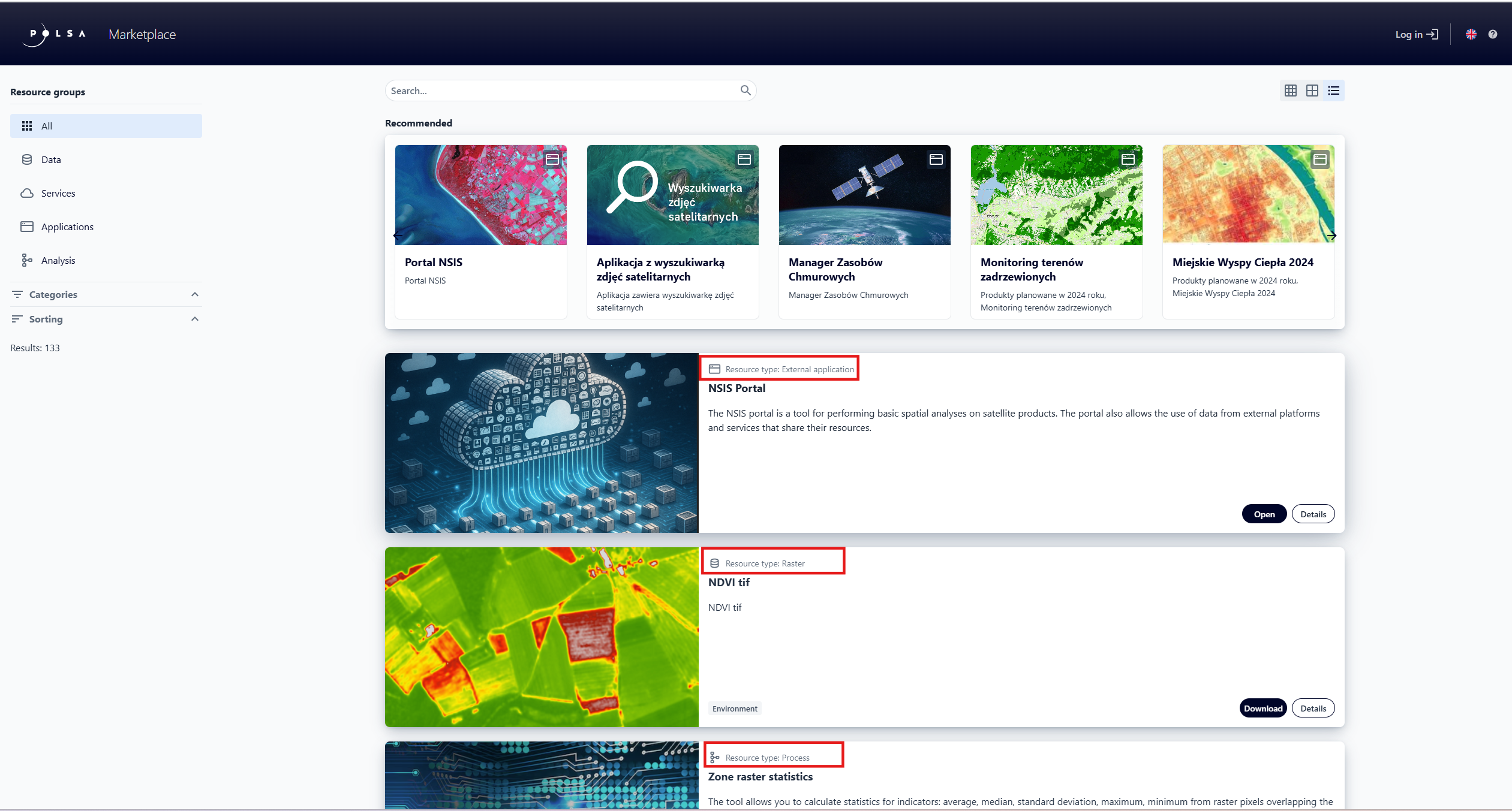
Fig. 7. Resource metadata - resource type name
or in the resource details
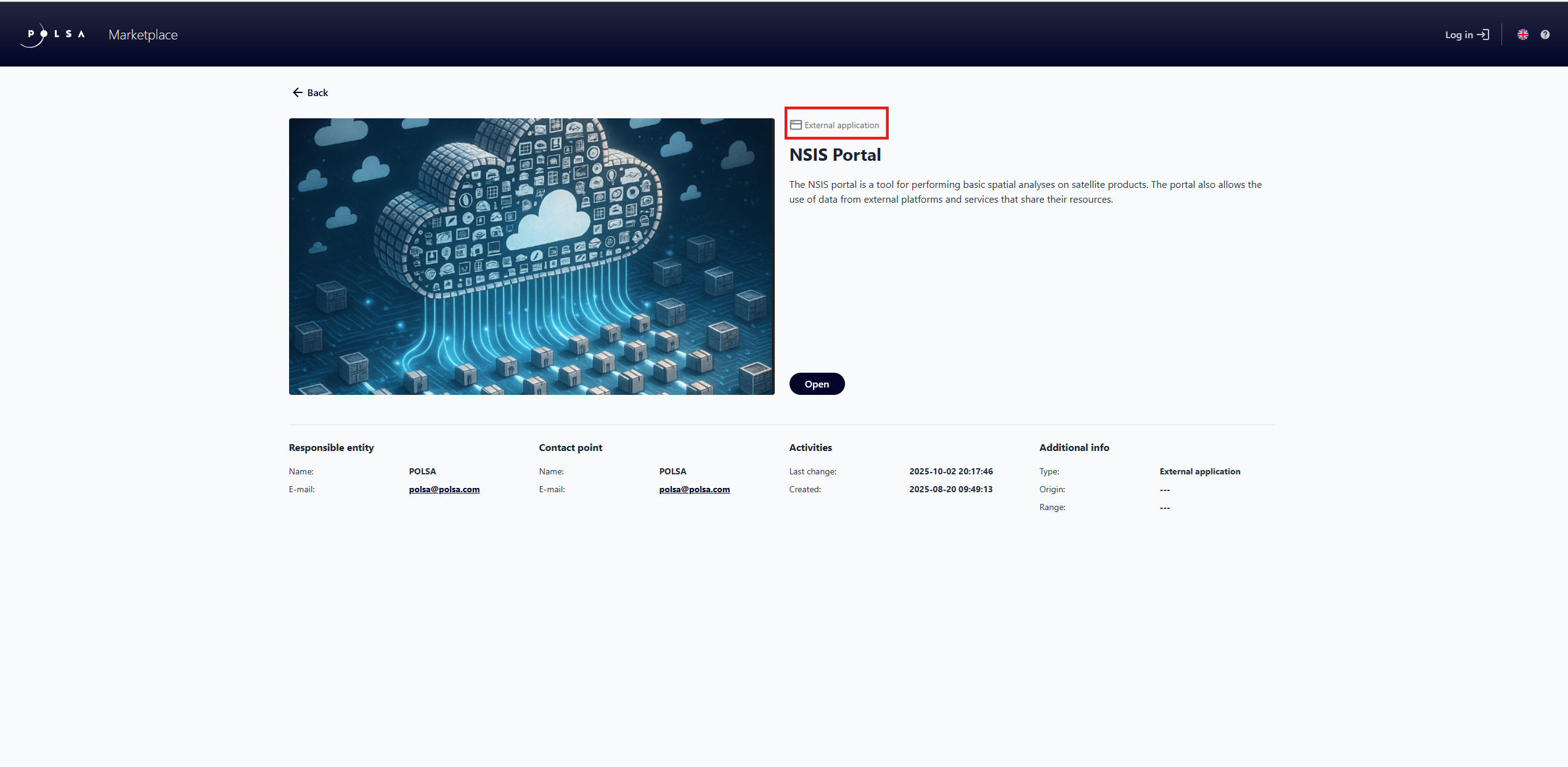
Fig. 8. Resource details - resource type name
Resource types have been grouped together:
Data - all resources created or imported in NSIS Cloud and then shared in the Marketplace (Algorithm, Raster Catalog, Files, Raster).
Services - all map compositions created or registered in NSIS Cloud and then shared in the Marketplace (Map Compositions, External Services).
Applications - all Maps and applications created or registered in NSIS Cloud and then shared in the Marketplace (Maps, External Applications).
Analyses - all Tasks and Processes created in NSIS Cloud and then shared in the Marketplace.
Resource groups are displayed in the menu located on the left side.
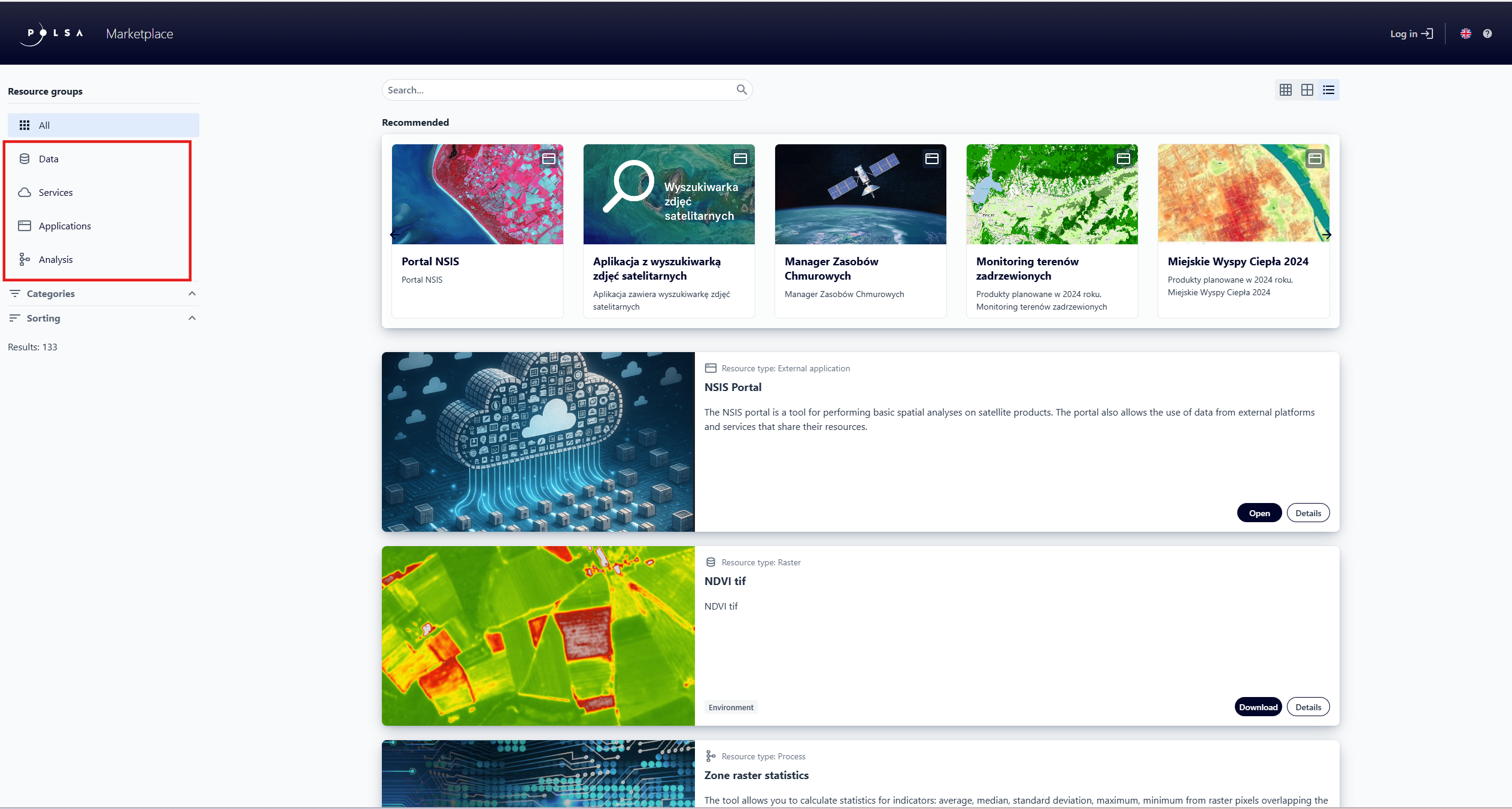
Fig. 9. Resource groups
6. Resource Filtering
The Marketplace application allows the user to filter resources using resource groups and categories.
Filtering by resource group
In the sidebar menu, the user can filter resources by group: Data, Services, Applications, Analyses.
The user clicks on the selected group, e.g. Applications, to display the resources available in the Marketplace that belong to this group. At the bottom of the menu, a resource counter is visible- “Results”.
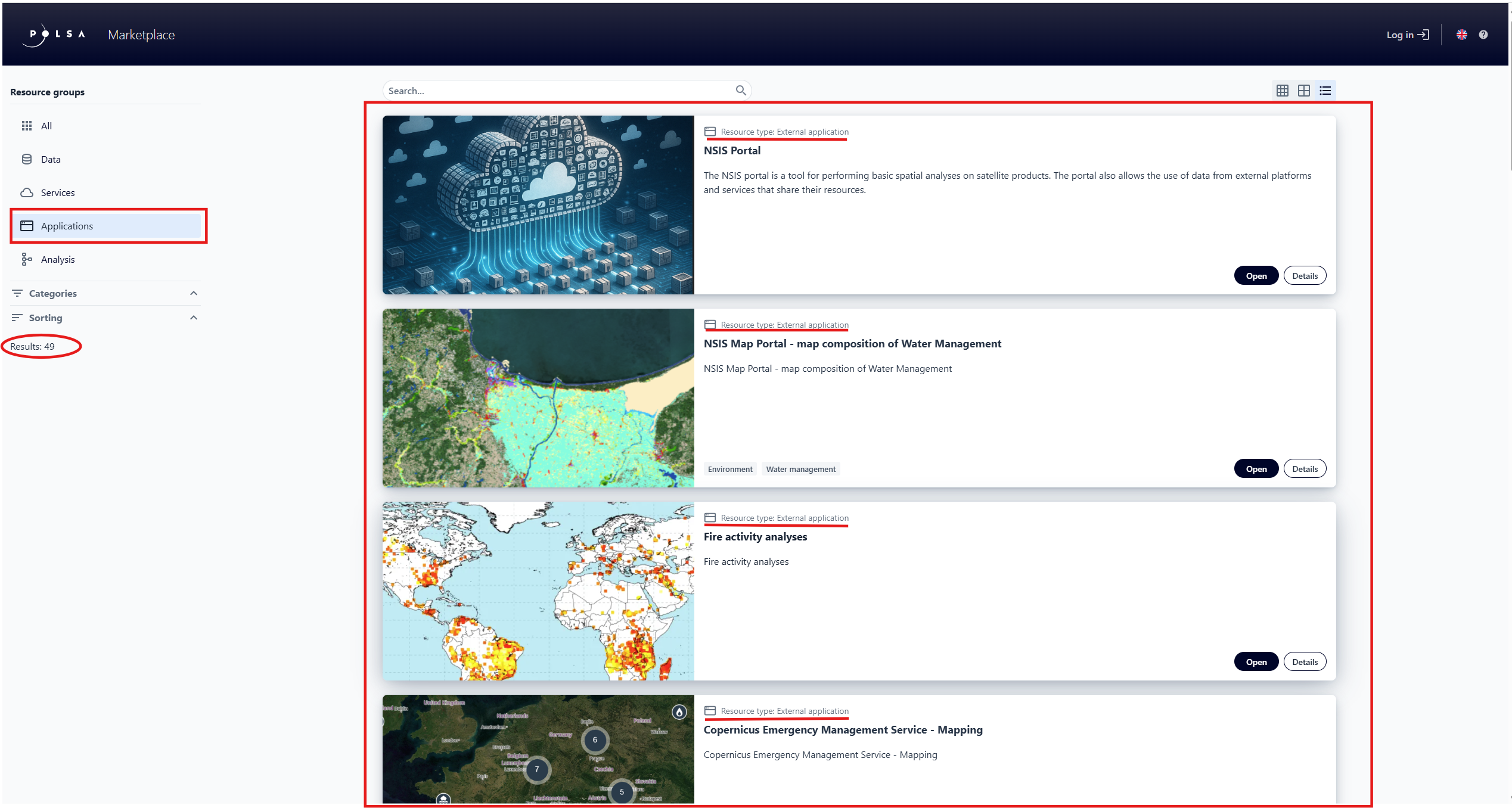
Fig. 10. Filtering resources by resource group - Applications
Filtering by category
The Categories option, available in the sidebar below the Resource Groups filter, allows filtering resources according to their assigned categories in NSIS Cloud. A single resource can belong to multiple categories.
The user clicks on . After expanding the list, they select the category for which they want to display resources, e.g. Environment.
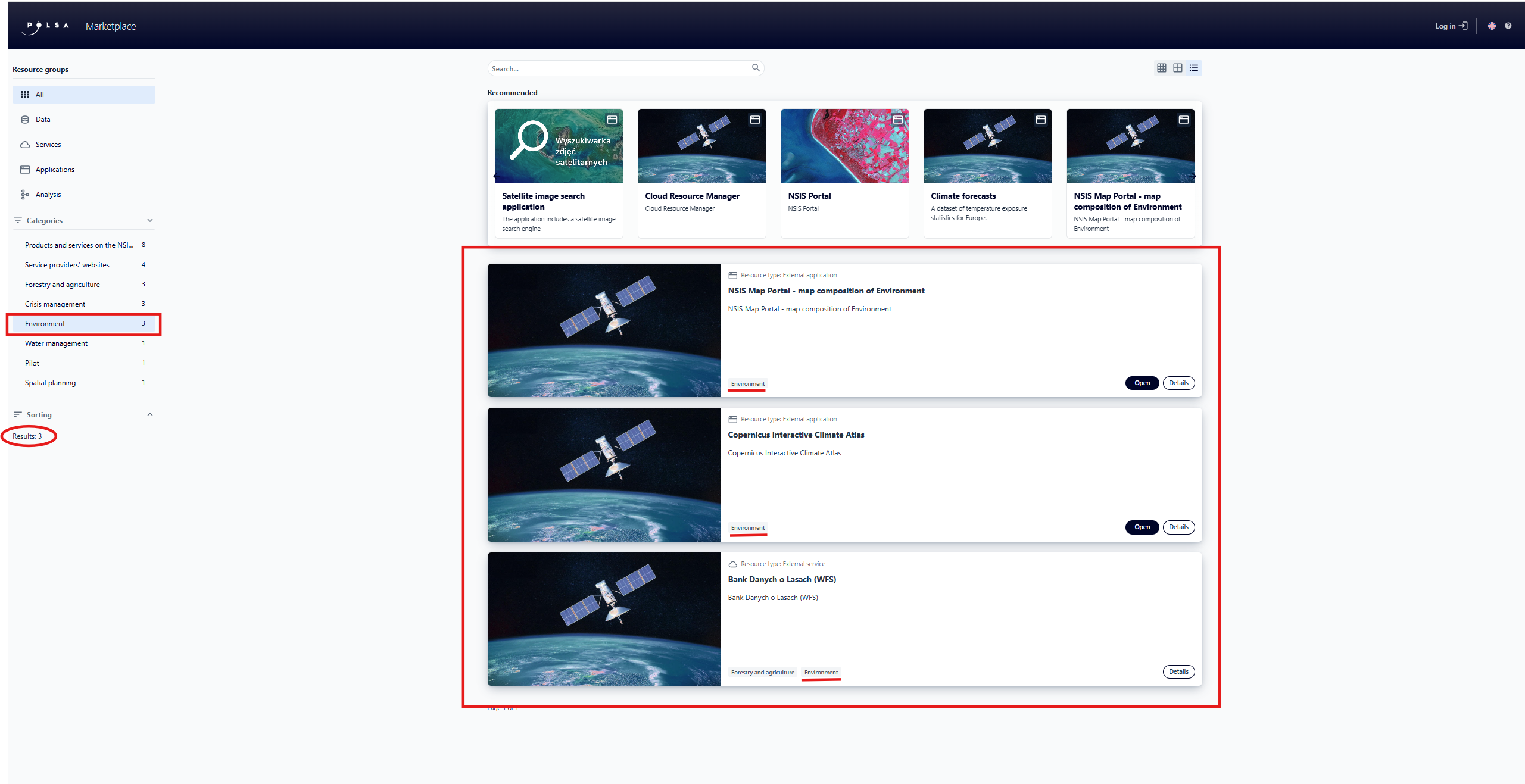
Fig. 11. Filtering resources by category - Environment
To remove a selected filter (“Environment”), the user must click on it again.
The user can combine multiple filters.
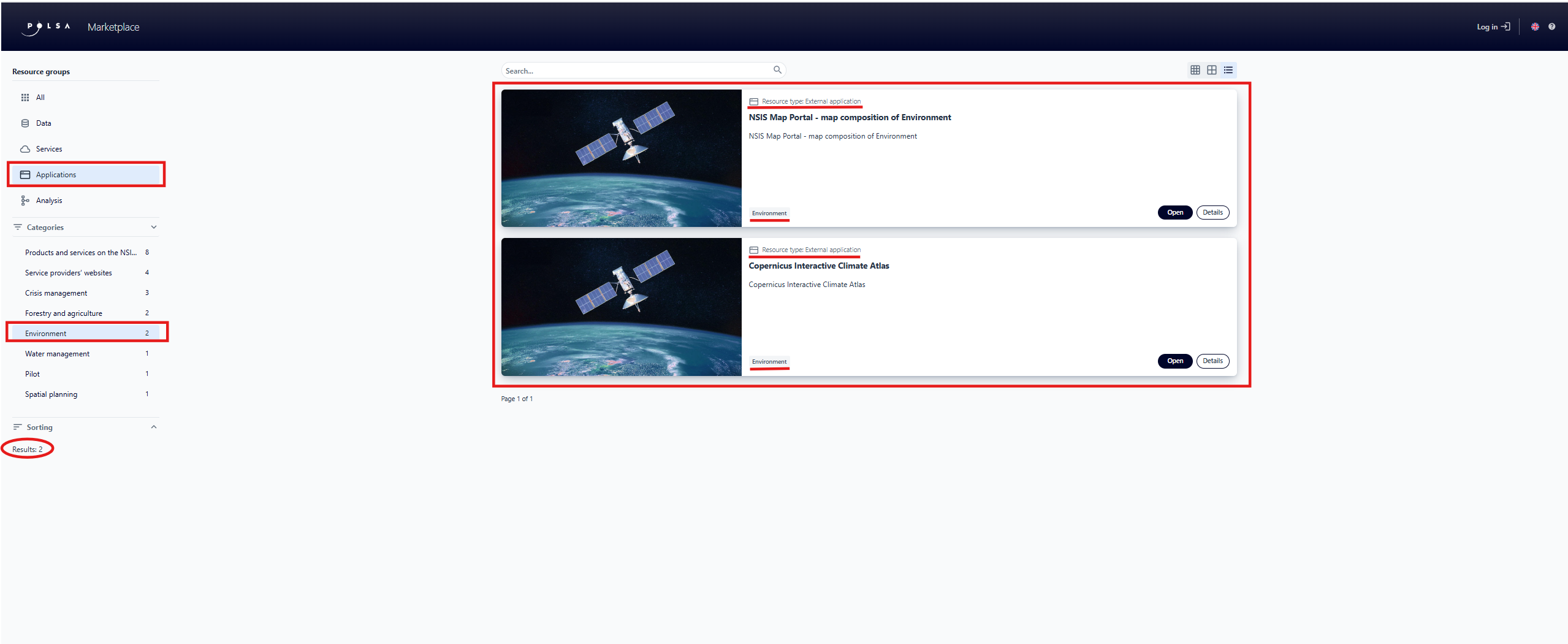
Fig. 12. Resources from the Applications group and the Environment category
If resources do not have an assigned category, a warning “No category” is displayed in the Categories option in the menu.
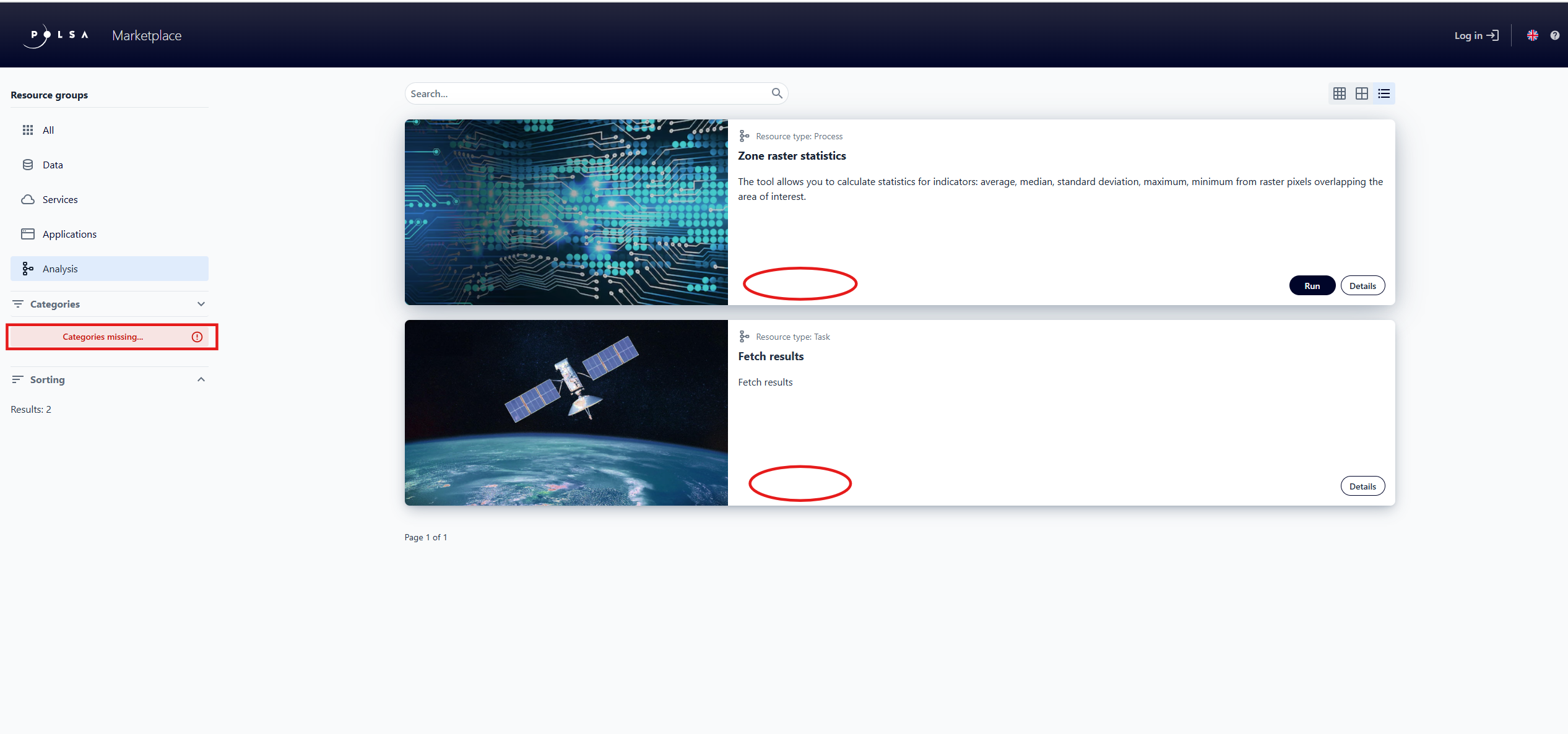
Fig. 13. Warning: “No category”
The category “Products and Services from the NSIS portal” allows the User to quickly filter resources in the system and access the relevant products and services of the NSIS portal.
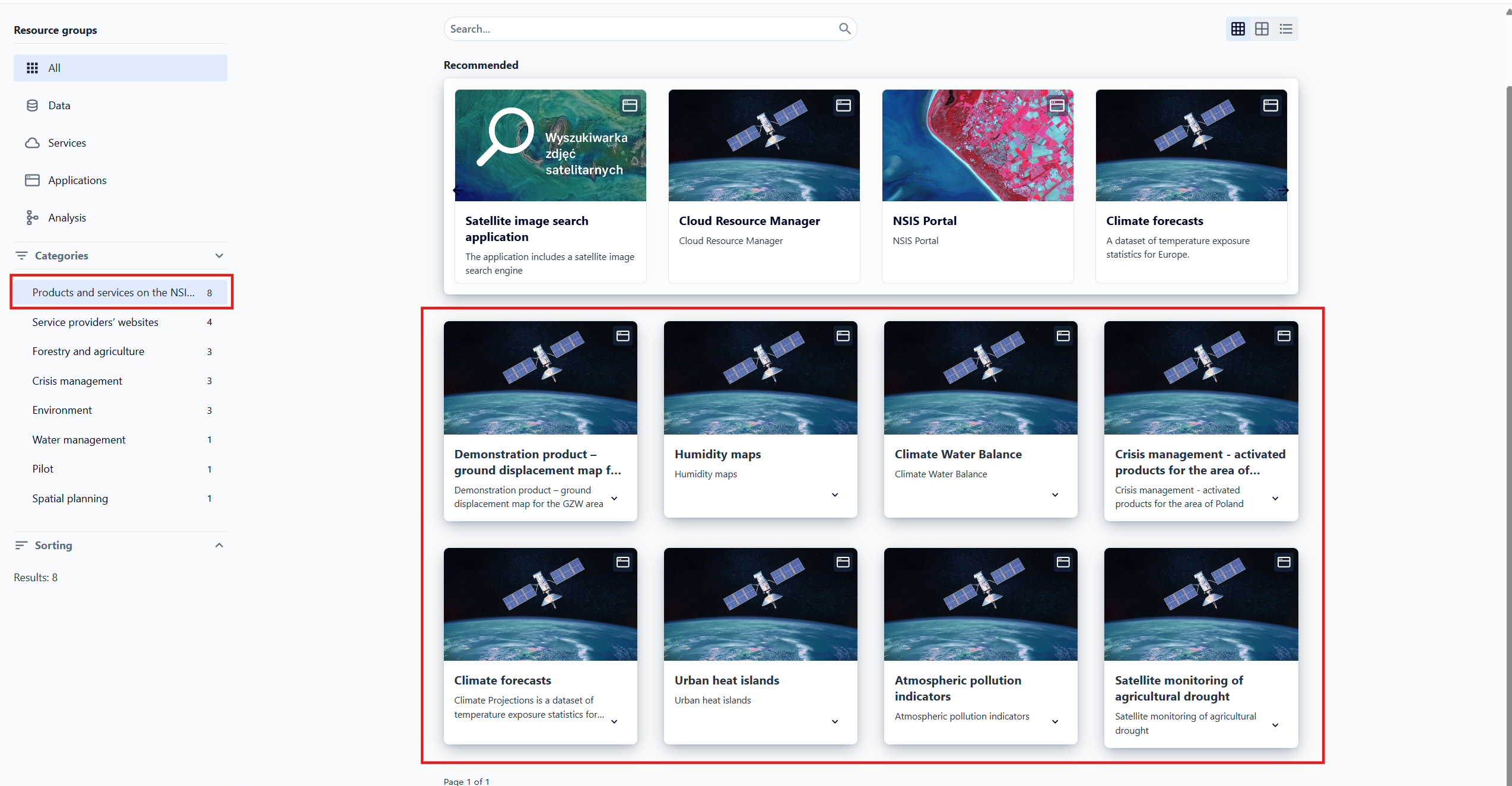
Fig. 14. Category “Products and services from the NSIS portal”
The user clicks on the “Open” button on the selected product/service.
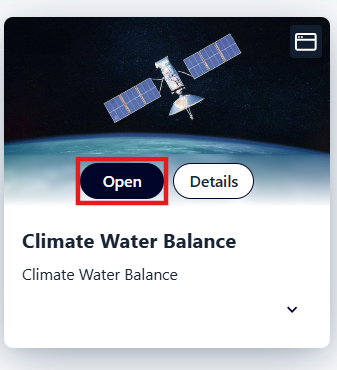
Fig. 15. “Open” button
The application displays the selected product/service on the NSIS portal.
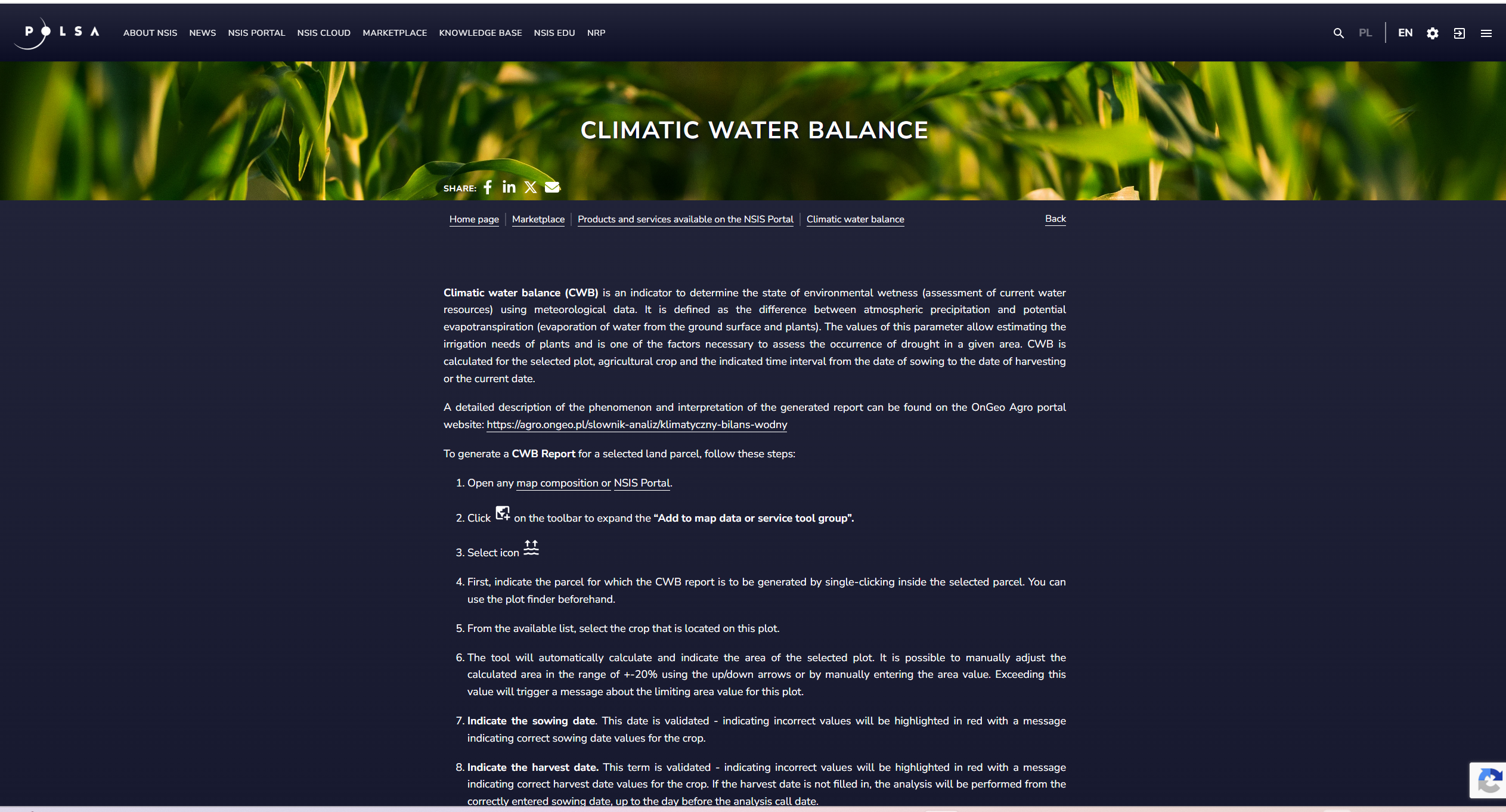
Fig. 16. Service in the NSIS portal
The category “Service Providers’ Pages” allows the user to find information available on the NSIS portal about professional service providers.
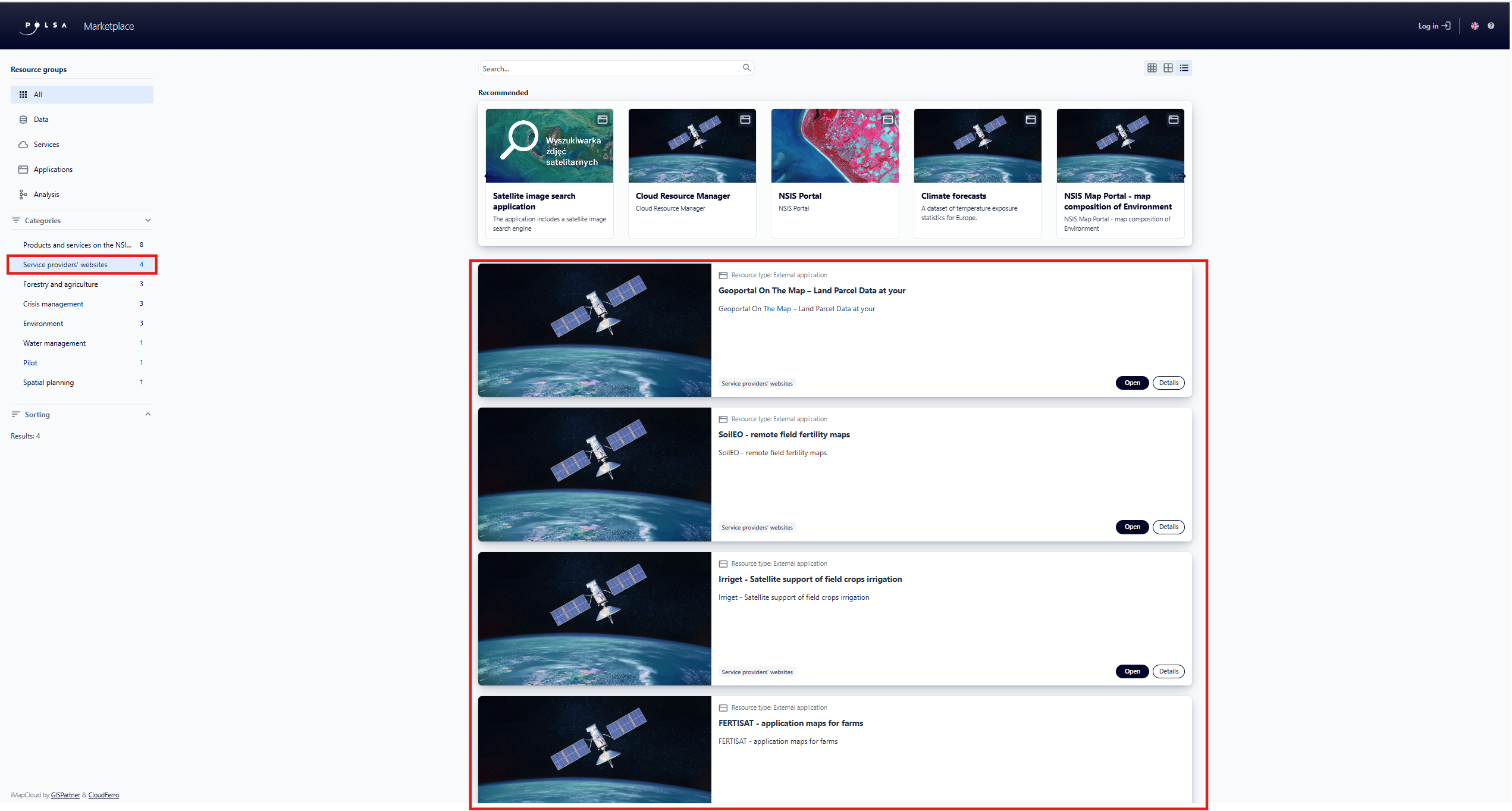
Fig. 17. “Service providers’ websites” category
After clicking the “Open” button, the user is redirected to the NSIS portal.
7. Sorting resources
In the menu, below the Categories filter, there is a Sort option used to change the order in which resources are displayed. Available sorting criteria:
Name - sorts resources alphabetically by their name;
Creation date - orders resource by the date they were added to the system (from oldest to newest or vice versa);
Modification date - orders resources by the date of the last change made to them;
Popularity - sorts resources according to how frequently they are used or viewed.
The arrow next to the sorting criterion indicates the sorting direction:
“ascending”  or “descending”
  .
To change the sorting direction, the user must select the desired option in the menu again.
.
To change the sorting direction, the user must select the desired option in the menu again.
The user clicks on . After expanding the list, they select a sorting criterion, e.g. Name, and the sorting direction, e.g., A-Z (ascending).
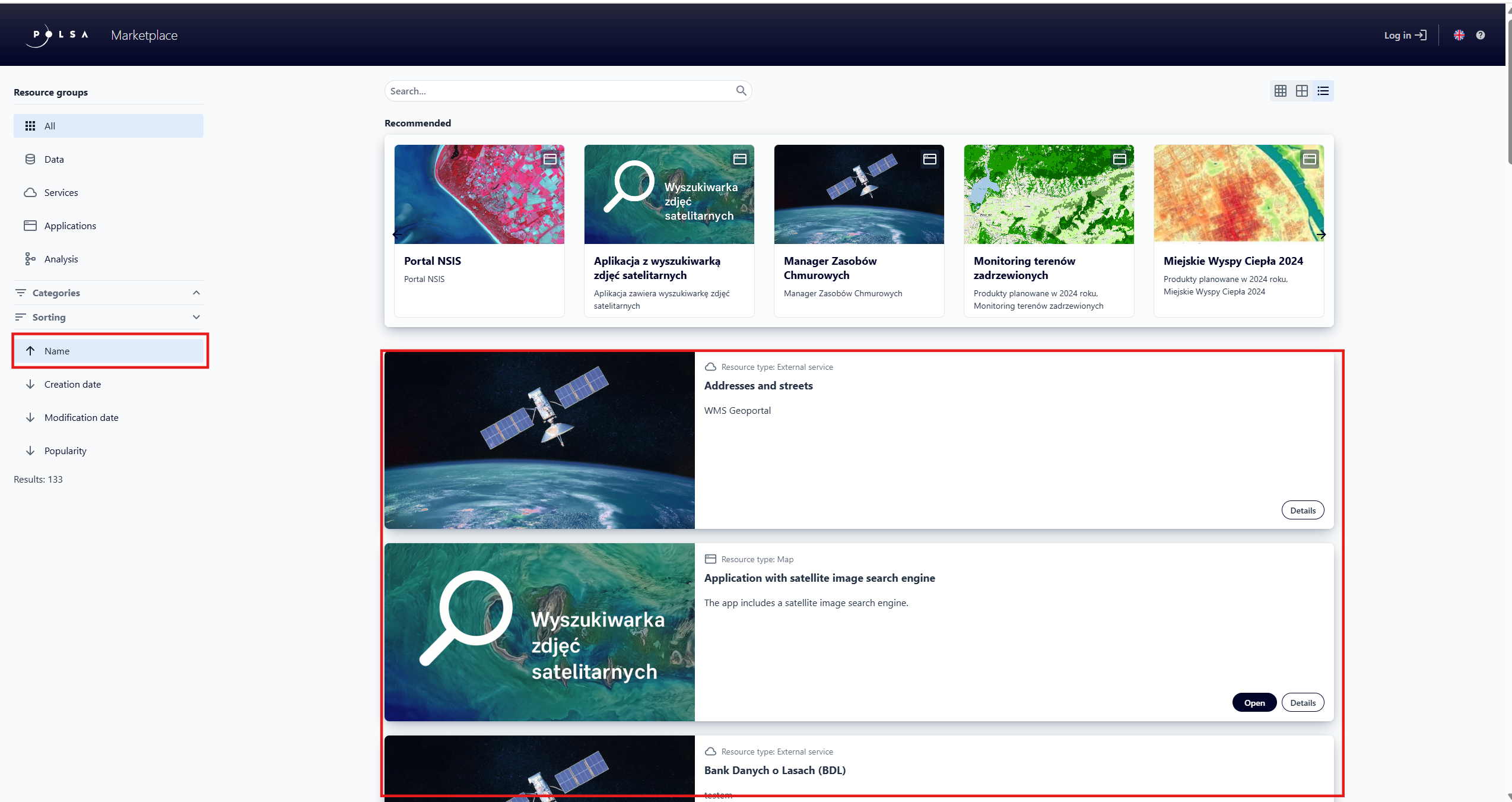
Fig. 18. Sorting resources- Name, ascending
8. Resource search
To search for a specific resource, the user enters a full or partial phrase in the search field and then confirms by pressing ENTER.
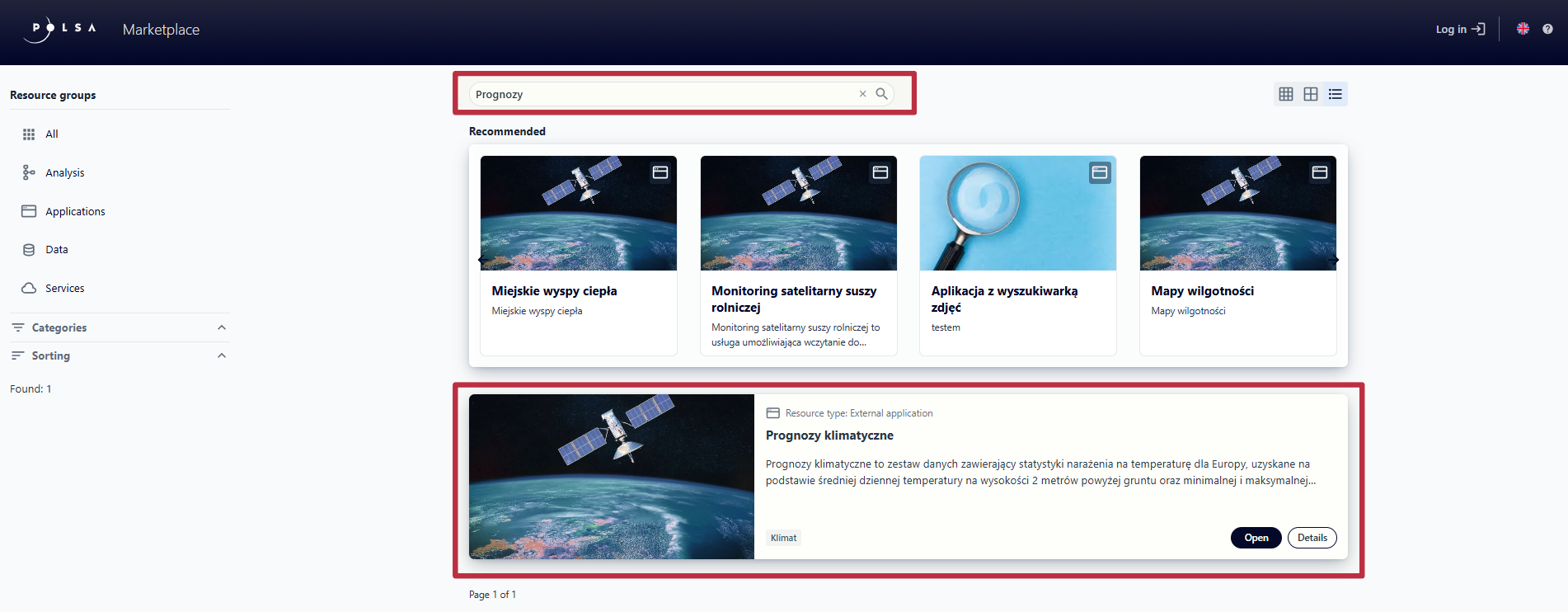
Fig. 19. Resource search
After entering characters in the resource search field, the application displays a button allowing the user to clear the entered text.
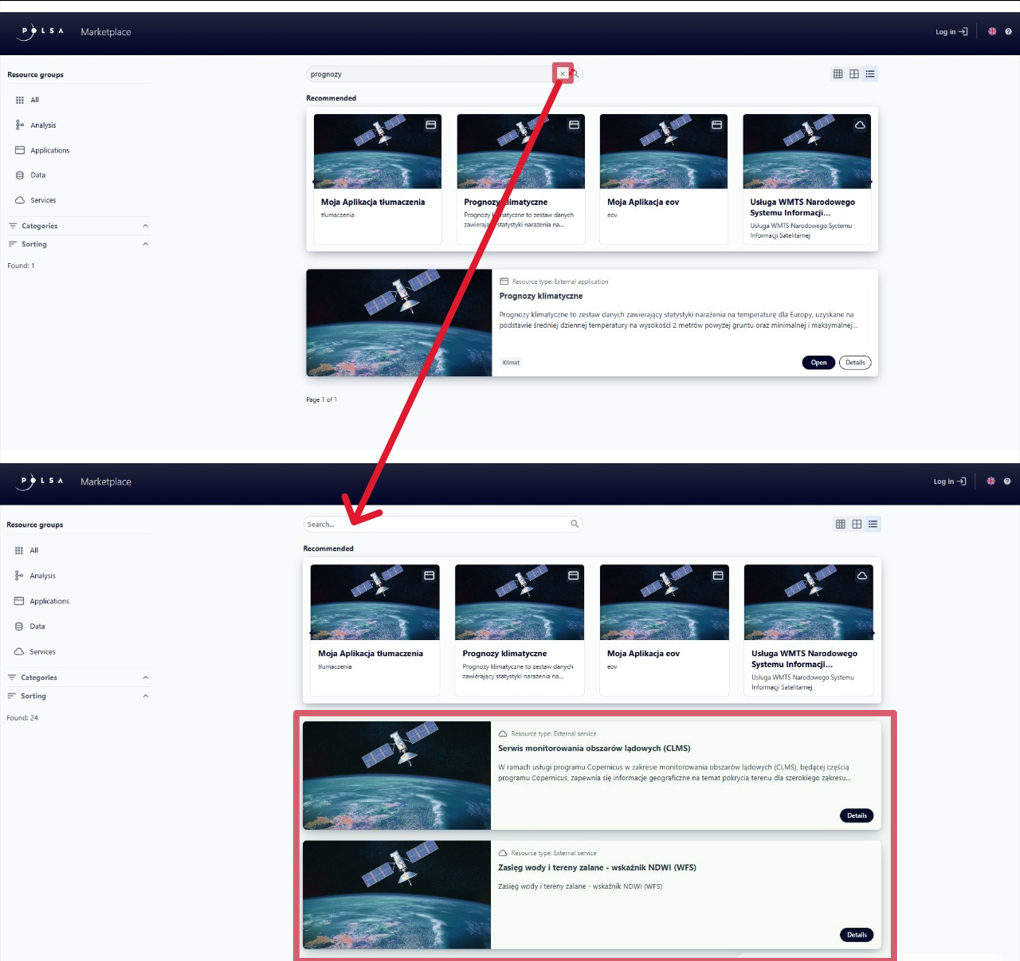
Fig. 20. Clear resource search field
9. Displaying detailed information about a resource
Detailed information about a selected resource can be displayed by the user by clicking the “Details” button or the resource name field.
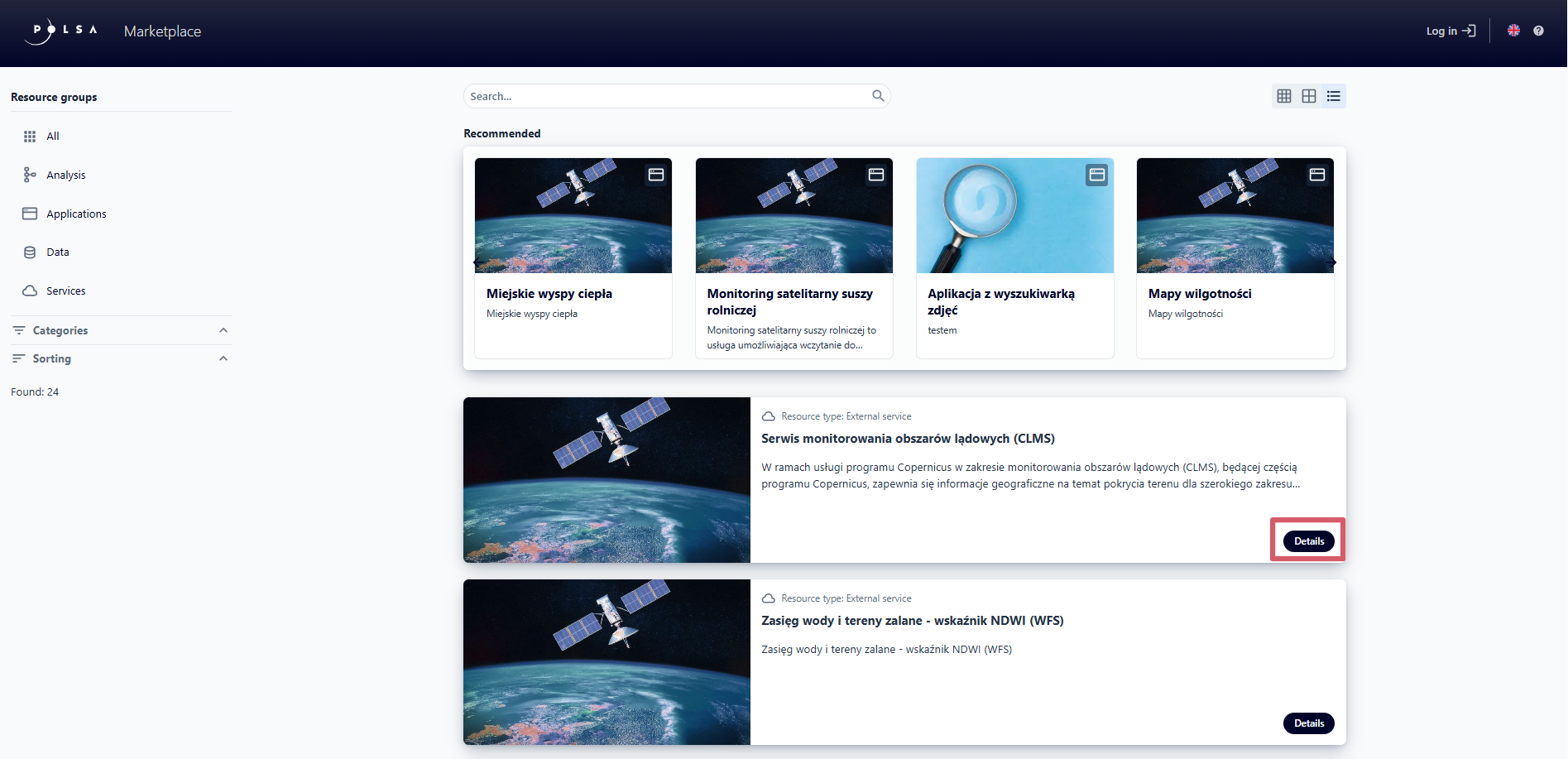
Fig. 21. “Details” button
In the detailed view, in addition to basic information such as Resource Type, Title, and Description, the application displays the following metadata:
Responsible Entity - Name and E-mail of the team that publish the resource in NSIS Cloud;
Contact Entity
Actions - resource modification date (Last Modified) and creation date (Created);
Additional Information - Resource Type, Origin, Scope.
For resources from the Services group, the service URL is also displayed. The user can copy this URL using the “Copy” button.
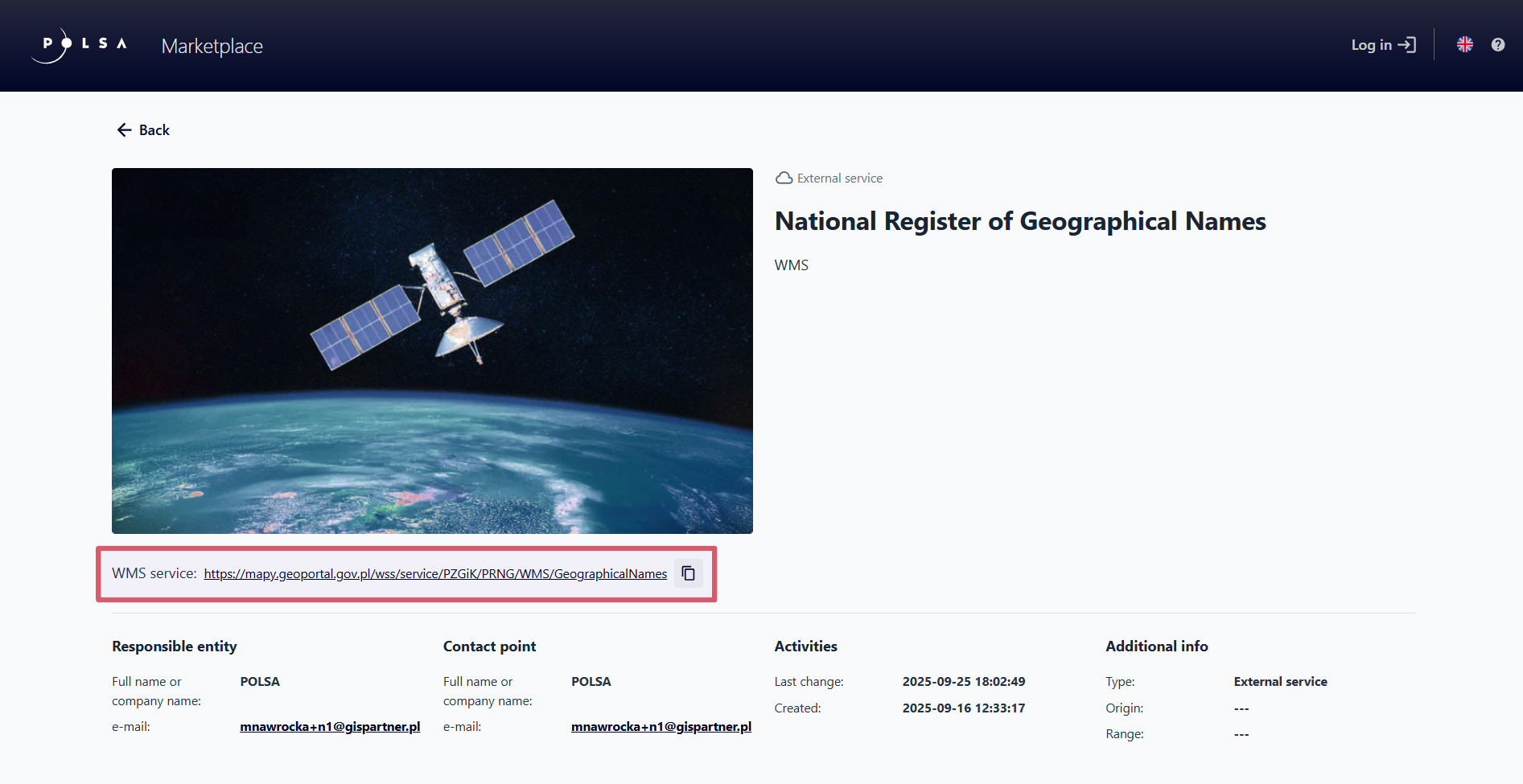
Fig. 22. Detailed view of an External Service resource
To return to the “Marketplace” homepage, the user clicks the “Back” button located in the top-left corner.
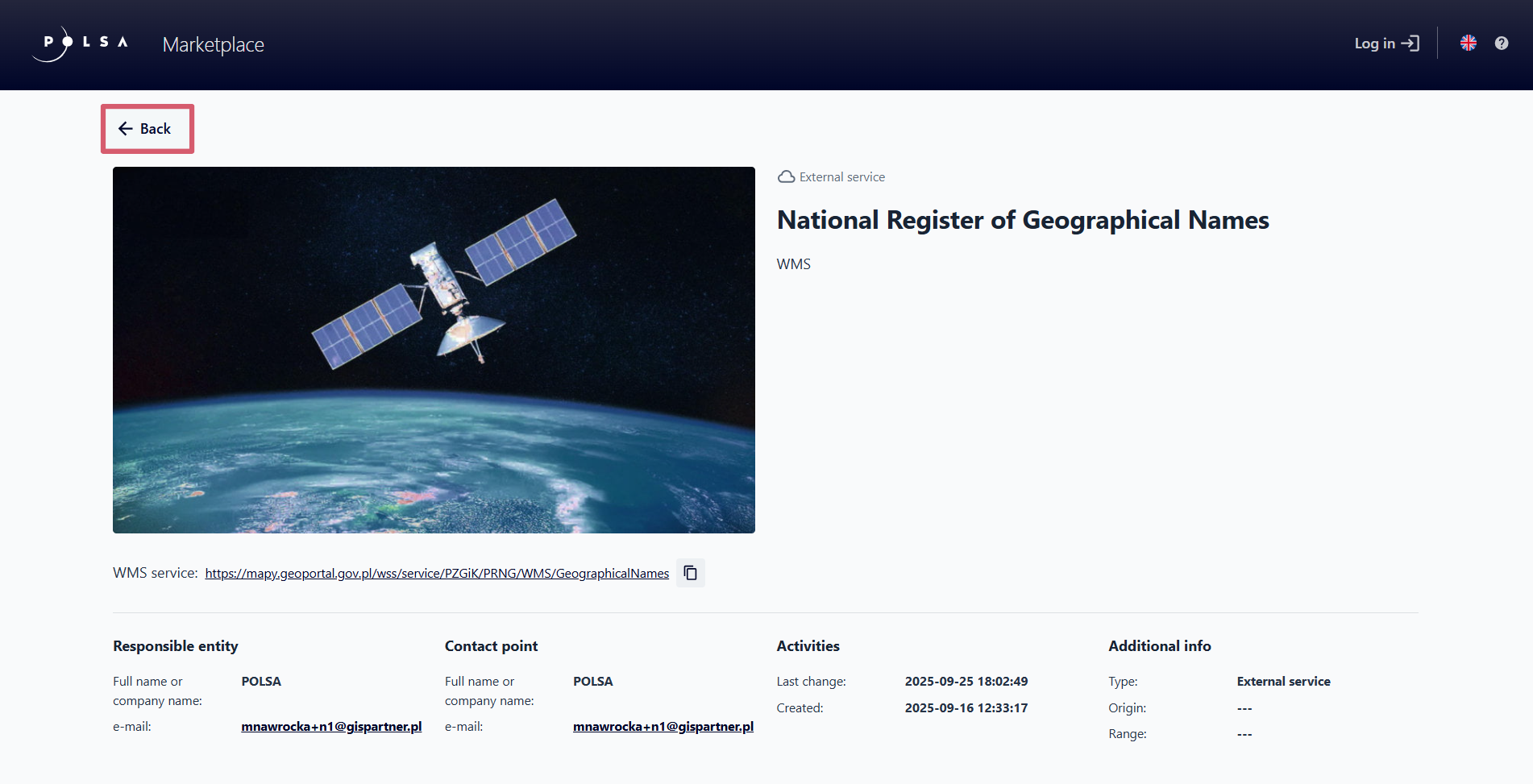
Fig. 23. “Back” button in the resource details view
10. Resource actions in the Marketplace
Opening a resource
For resources from the Applications group, the user can click the “Open” button, which will open the Map/ External application in a new tab.
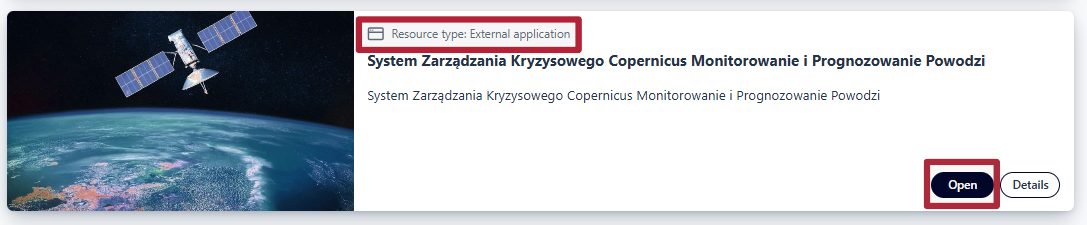
Fig. 24. Open External application
Downloading a resource
For resources from the Data group, the resource can be downloaded using the Download button.
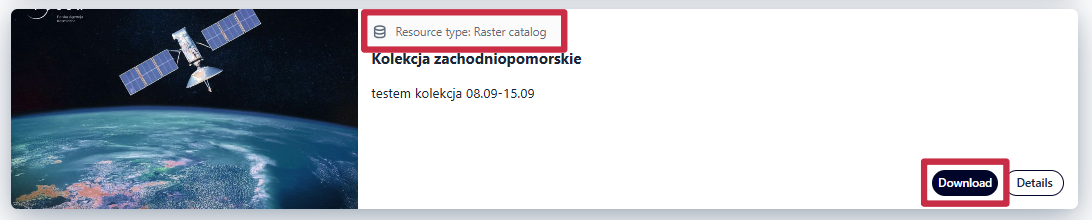
Fig. 25. Download Raster
When downloading rasters from the Raster Catalog, after clicking the Download button, the user will be prompted to log in to the NSIS Cloud portal. This operation is available only to registered users.
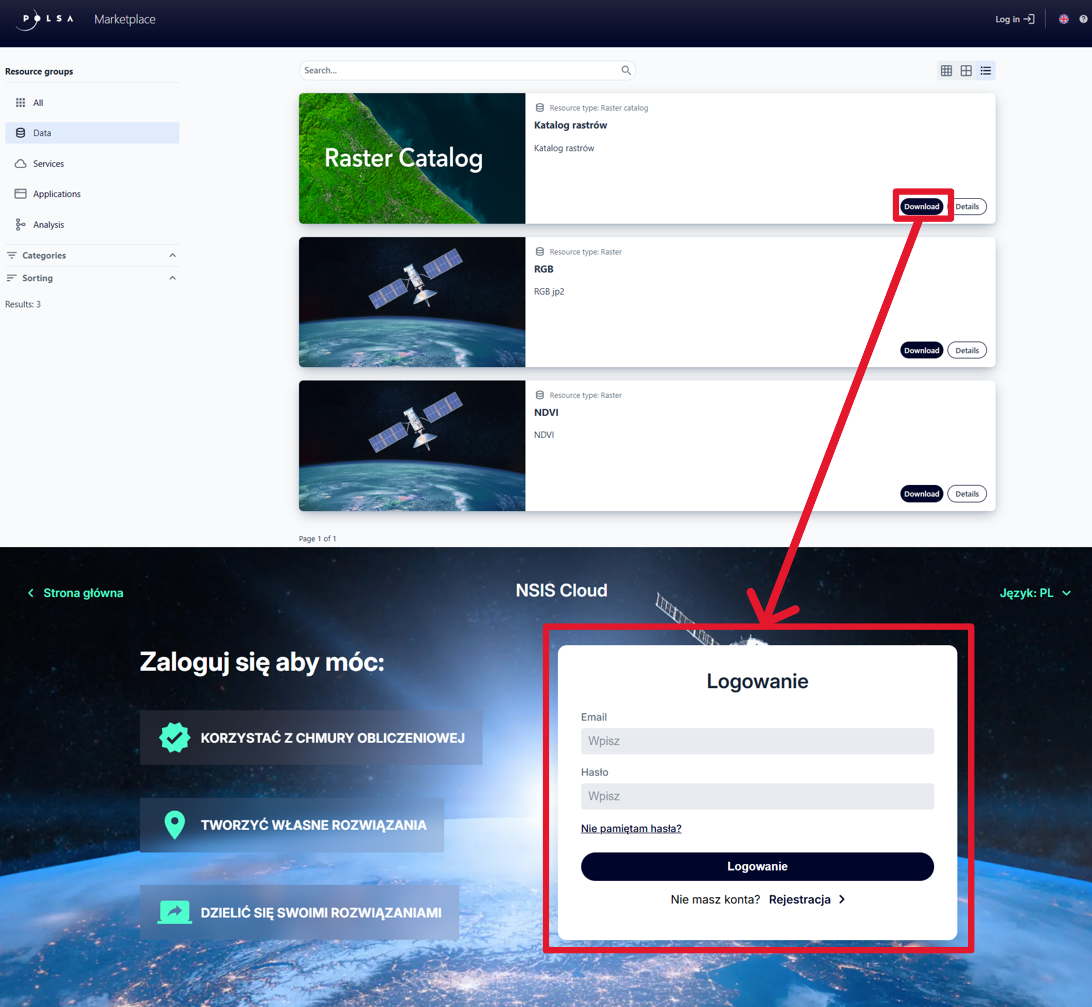
Fig. 26. Download Raster from Raster Catalog
Running a resource
Running the Process resource requires logging in to the NSIS Cloud portal and is available only to registered users.
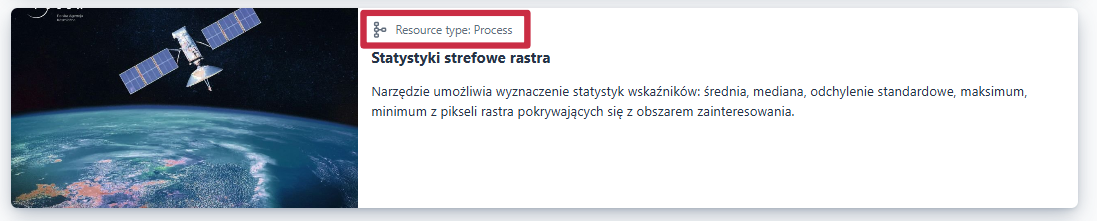
Fig. 27. Running Process
11. Login
By clicking the Login button, the user can either log in or register a new account on the NSIS Cloud portal.
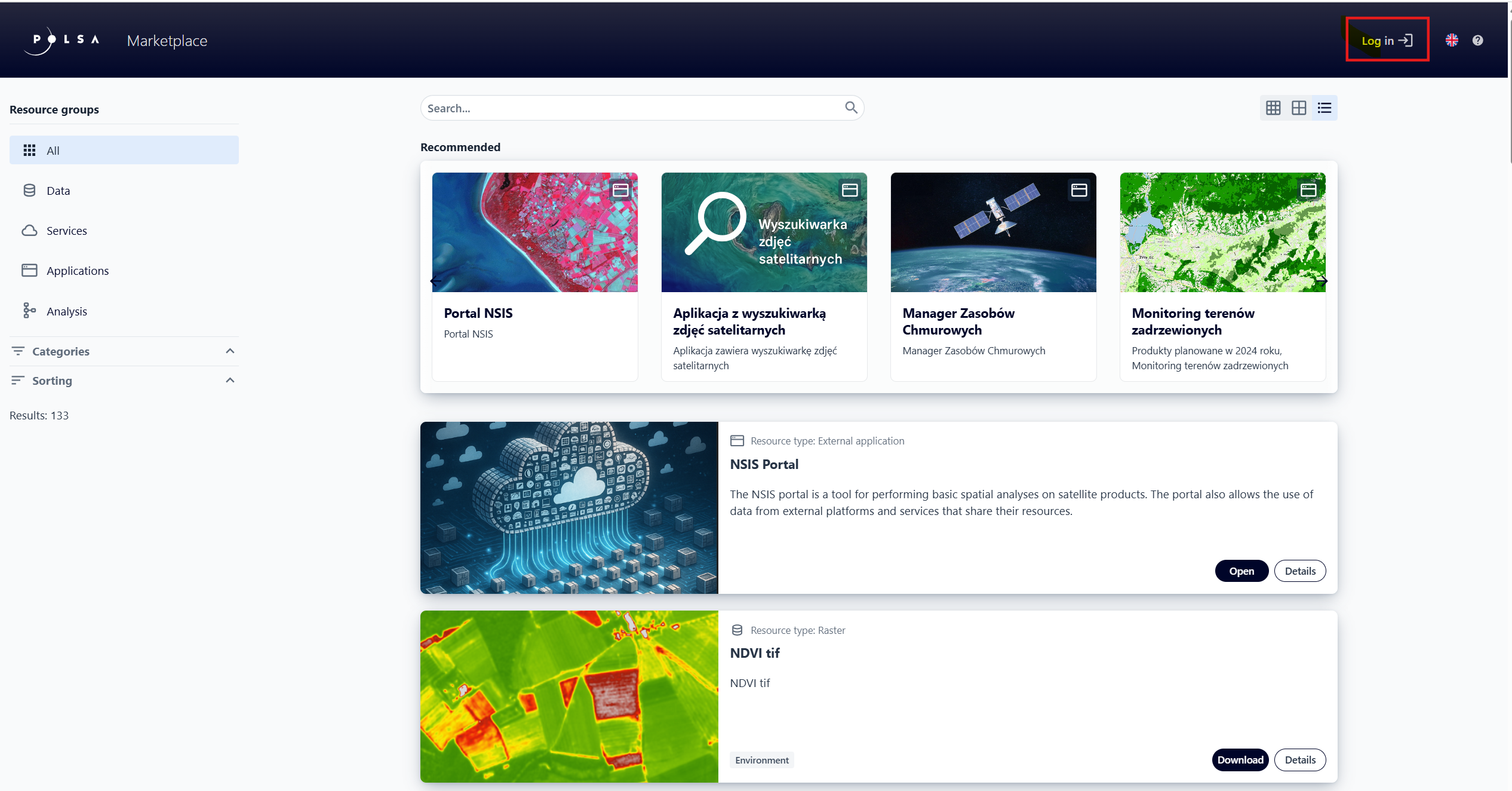
Fig. 28. “Log in” button
In the next step, the user enters the login credentials: Email and Password and confirms by clicking the “Login” button or selects the Register option to create a new account.
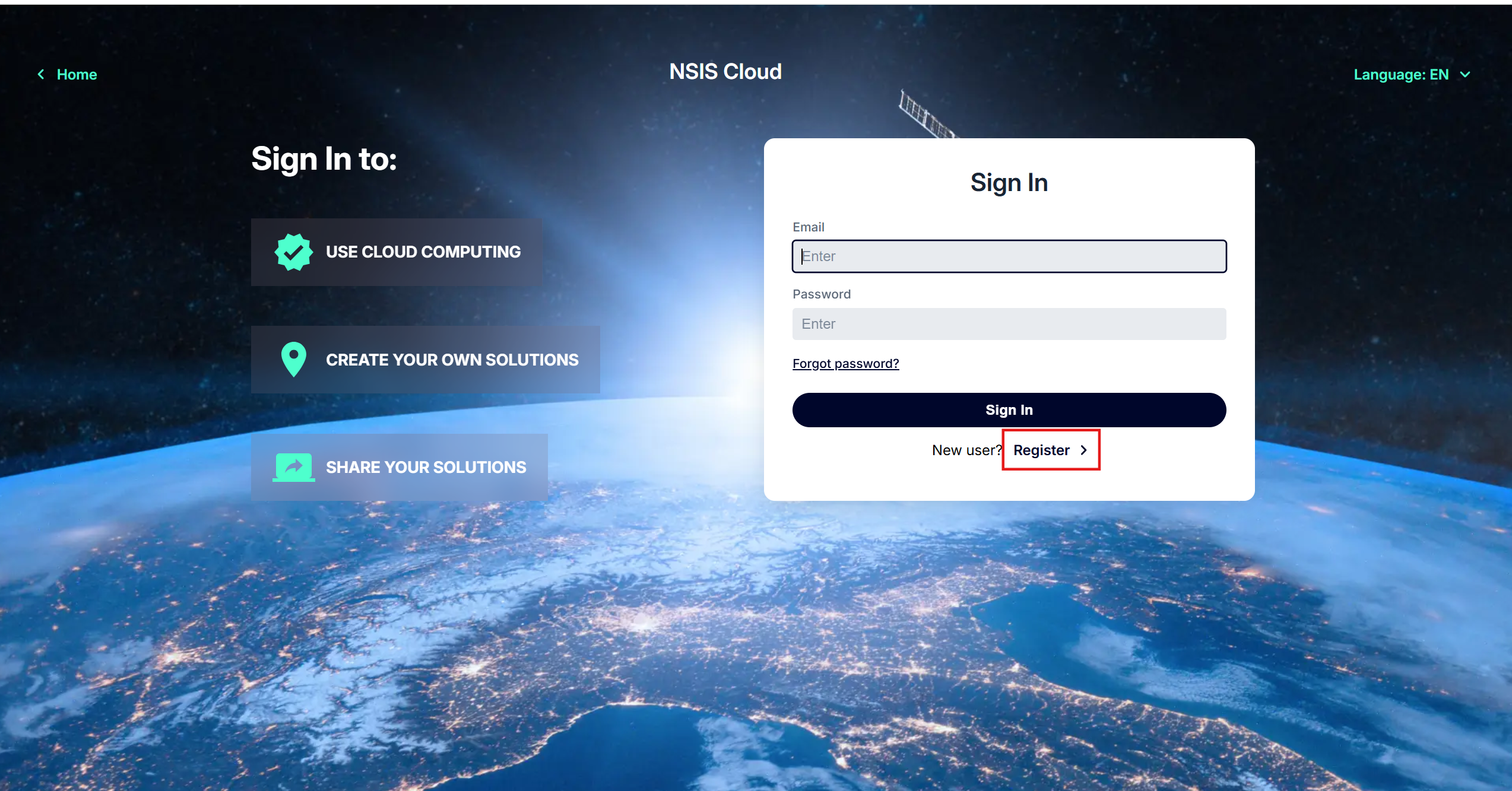
Fig. 29. “Register option
The user fills in the registration form fields, reviews the term and condition, and accepts the required consents, then confirms by clicking the “Create Account” button.
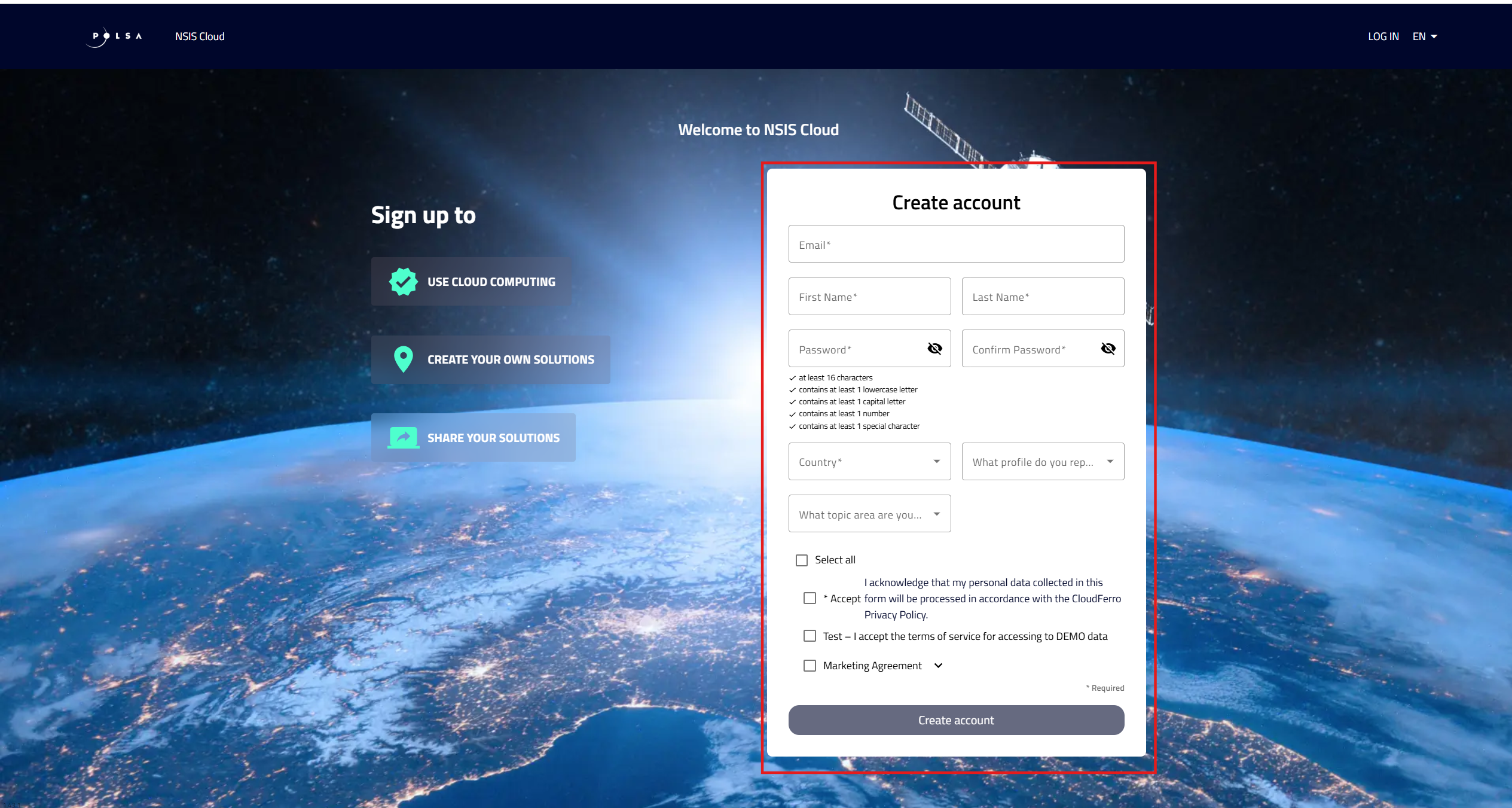
Fig. 30. Registration form